The yard board
Summary
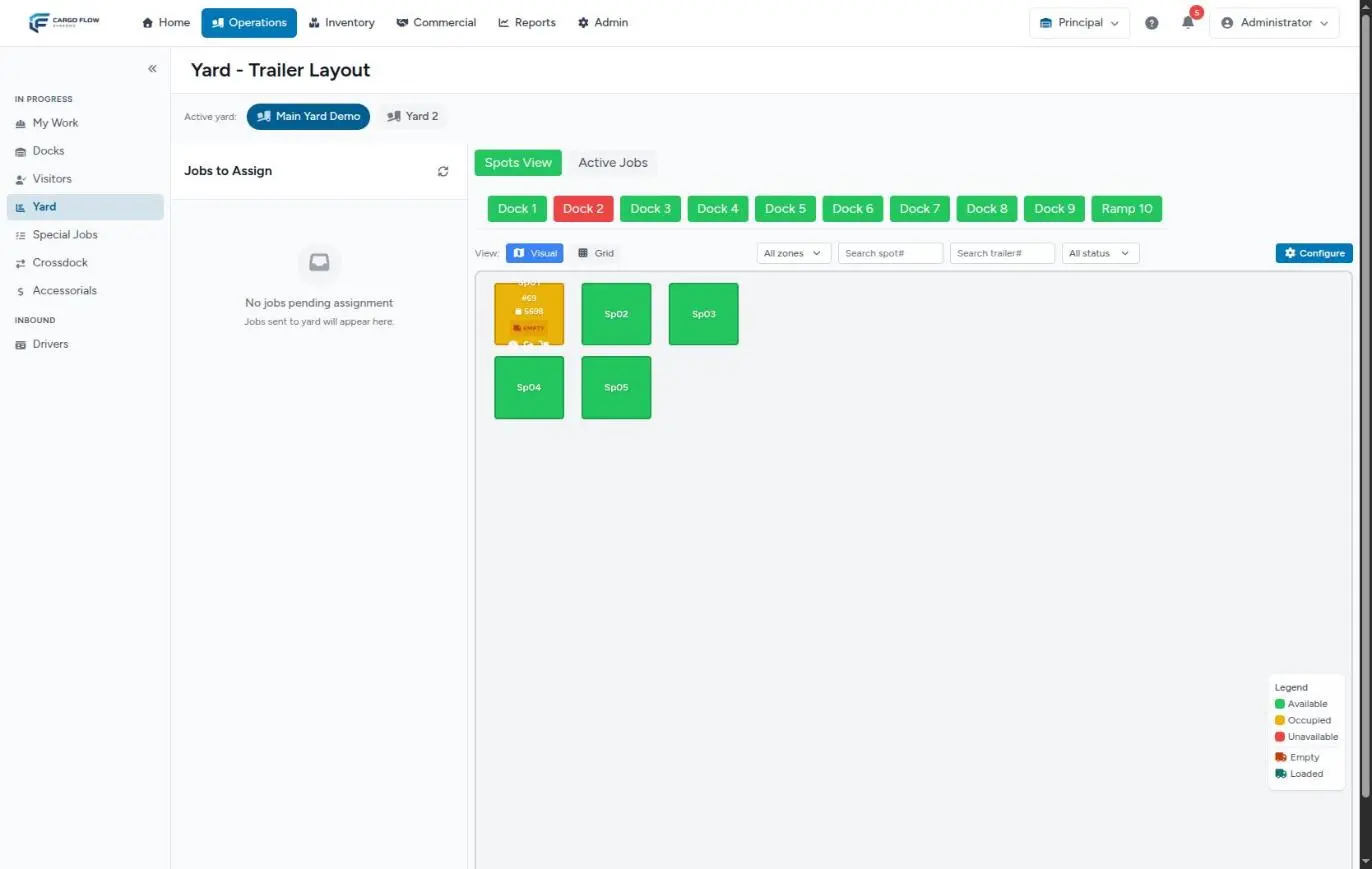
The yard board (Yard - Trailer Layout) shows your yard’s layout with every parking spot, which trailer is in each one, whether it is empty or loaded, and the pending moves. Almost everything is done by dragging: a card onto a spot, a spot onto another spot, or a spot onto a dock. Each drag opens a window to confirm the move and pick who does it.
It is the counterpart of the dock board: the dock board tells you what happens at the doors, this screen tells you what happens outside. To see how work passes between the two, read Dock, yard and cross-dock.
Before you start
- Module: the warehouse must have the Yard module. Without it, neither the menu option nor the screen exists. See Modules, permissions and access.
- Permissions: opening the screen needs Read Yard; seeing it in the menu and creating, starting, finishing, cancelling or reordering moves needs Write Yard. By default both come with the Supervisor, Admin and Super Admin roles. The Worker role has neither: the person who moves trailers works from My Work.
- At least one yard with spots: set up under Admin › Configuration › Parking Areas (Configure Yard permission). See Setting up the yard and its spots.
- Docks: the dock row at the top and any move to a dock also need the Docks module with its docks set up.
How to open it
In the Operations menu, choose Yard in the sidebar (In Progress section). If you work with several warehouses, check the warehouse selector in the top bar first: each warehouse has its own yards.
The parts of the screen
Switching yards
If the warehouse has more than one yard, Active yard appears at the top with one button per yard. Press the one you want; the system confirms with Switched to yard: …. The choice lasts for your session and also decides which yard is searched when someone sends a driver to the waiting area. With a single yard this selector does not show.
Jobs to Assign
The left panel gathers everything waiting for a spot or for someone to move it:
- Drivers who checked in at the kiosk to drop a trailer in the yard (Yard Drop Off) or to pick one up from the yard (Yard Pickup). The system queues them on an internal yard-type dock that no board shows.
- Trailers the supervisor sent to the yard from the dock board without a spot (Pending Yard status).
- Yard moves that were created but have nobody assigned.
The order is: urgent or critical moves first, then by arrival time. Each card shows its position, the trailer, the type (Delivery, Pickup or Load), the driver and how long it has been waiting (red after 30 minutes). A red bolt means urgent. Badges tell you whether it needs a spot or a yard worker.
If the card needs someone to move it, it has a list to pick the person and an Assign button. Yard pickups have a Match Trailer button to say which trailer the driver takes. The eye opens the Details. When there is nothing, the panel reads No jobs pending assignment. The arrows button reloads it.
How to work each card is covered in The yard queue and quick release.
The dock row
Above the map there is one button per dock. Green: the dock has no active jobs. Red: it has at least one. The buttons are also drop targets: drag an occupied spot onto a dock to create the move of that trailer to the dock.
The spot map
The first tab, Spots View, shows the yard layout exactly as it was drawn in the setup: spots, reference elements (entrances, roads, guard house…) and the background image, if one was uploaded.
Colors and empty or loaded trailers
| Color | Meaning |
|---|---|
| Green — Available | The spot is free. |
| Yellow — Occupied | A trailer with its dock job is in that spot. |
| Red — Unavailable | The spot is held without a recorded trailer: for example, reserved for a move that has not finished. |
| Purple — Waiting Area | Only in installations with the waiting area turned on. |
An occupied spot shows the job number, the trailer number and an Empty (orange) or Loaded (teal) badge. Nobody sets it by hand: the system decides from the job type. A delivery arrives loaded and becomes empty when the operator finishes unloading; a pickup arrives empty and becomes loaded when finished; a load leaves loaded. An internal job does not say what the trailer holds and shows no badge.
Every night at 3:45 the system frees spots left occupied without any active job behind them.
What you can do with an occupied spot
- View Details (i) — opens the job data, its photos, its moves and the corrective actions.
- Quick Release — checks the trailer out without creating a move for anyone. See Quick release.
- Send to Dock for Loading — empty trailers only: creates the move from the spot to a dock to load it.
- Drag — onto another free spot (reshuffle inside the yard) or onto a dock in the top row.
Views and filters
- View: Visual or Grid — the drawn layout or a simple grid of spots. Each yard’s opening view is set in the yard (Map or List).
- All zones — filters by the zone given to each spot.
- Searches — by spot number and by trailer number (part of the number is enough).
- All status — only available or only occupied.
Filters combine. While any is on, you see how many spots match out of the total, and Clear filters removes them. If nothing matches you see No spots match the current filters.
The Configure button (Configure Yard permission only) opens the editor of the active yard.
The Active Jobs tab
The second tab is the yard move queue, split into Gate activity (entries / exits) and Yard movements. Each card shows from where to where, who has it (or Unassigned), its queue position, how long it has waited and when it started. The Start, Finish, Move to top, Mark urgent and Cancel job buttons are explained in The yard queue and quick release. With nothing in it, it says No active jobs.
The details window
It opens from a card’s eye or a spot’s (i) button. It shows the driver information and extra fields, the job type, the times (arrival, assignment, start and end), the dock, operator and customer, the notes, the Photo Evidence and the Yard queue of that job (its moves with status and wait).
The Supervisor, Admin and Super Admin roles also see Corrective actions:
- Move to dock management — sends the job back to a dock (see Corrections).
- Cancel job (and yard jobs) — cancels the dock job and all its yard moves. It asks Cancel this job and all its yard jobs? This cannot be undone.
What the yard feeds in other modules
- Dock board: a spot-to-dock move puts the job as Assigned on that dock; a dock-to-spot move closes the dock job and frees the door.
- Driver and Visitors: when the trailer leaves the yard or the job closes, the driver is checked out and, if the warehouse uses Visitors, the visit closes.
- Driver messages: in installations with extended driver notifications, the driver gets a message when the trailer is parked, moved to the yard, sent back to a dock or released. See Driver notifications.
- Operator app: every move with a person assigned appears in their My Work, always before any dock job.
Yard reports
Reports has two yard reports (Read Yard Reports permission, included with Admin by default):
- Yard Management — the move history, filtered by dates, status, move type and search; exports to Excel.
- Yard Inventory — the current picture: occupancy, loaded and empty trailers, free spots by zone and each trailer’s dwell time, flagged as warning or critical from the minutes set on the yard. Exports to Excel and PDF.
See The system reports.
Example: checking the yard at shift start
- 6:00 — The supervisor opens Yard. Jobs to Assign has two cards: trailer 90412 for Valley Distributors in Pending Yard (45 minutes, in red) and a yard pickup by Luis Pérez.
- She drags 90412 onto spot A-03, changes the move type to Dock to Spot, picks Carlos Ruiz and creates the job. Spot A-03 turns yellow at once.
- She presses Match Trailer on Luis’s card, picks spot B-01 (trailer 55120 is flagged as a match) and confirms without picking anyone: Luis hooks up himself, B-01 is freed and his job closes.
- She searches trailer 30077: it is in C-02, empty, for three days. She sends it to dock 5 with Send to Dock for Loading.
Special cases and limits
- Trailer in Pending Yard: it is still physically at the dock until someone moves it. Meanwhile it is not on the map, only in Jobs to Assign.
- Yard drop-offs: a driver who leaves a trailer in the yard keeps an open job (Assigned) and counts as on site until that trailer leaves. See the queue special cases.
- One trailer, one move: creating a new move for a job that already had one pending cancels the old one and frees its spot.
- What you cannot do here: draw or delete spots (that is the editor) or change a spot’s status by hand.
Best practices
- Check Jobs to Assign at the start of every shift: nothing should be left without a spot or a person.
- Use the trailer search before sending someone to look for it physically.
- Use Quick Release only when the trailer has already left; if someone has to move it, create the move so it is recorded.
- Review Yard Inventory weekly to catch trailers with long dwell times.
- Keep the screen open at the guard house: it refreshes itself when someone creates or finishes a move.
Troubleshooting
I don’t see Yard in the menu.
- The warehouse lacks the yard module, or your user lacks Write Yard. Ask an administrator to check your role.
A spot is red with no trailer.
- It is held by a move that has not finished (check Active Jobs). If there is none, the 3:45 process will free it; if it is urgent, cancel the move that holds it.
I can’t find a trailer on the map.
- Check you are in the right yard (Active yard) and that no filters are on. If its job is in Pending Yard, the trailer has no spot yet: it is in Jobs to Assign.
The real-time connection lost banner appears.
- The screen keeps refreshing every 30 seconds. If it lasts more than a minute, reload the page.
Frequently asked questions
Can I mark a spot as unavailable?
No. Today a spot can only be free or occupied, and red only appears when it is held without a trailer. If a spot must not be used, change its type to Maintenance in the yard editor so the team can spot it, or remove it from the layout.
Why does nothing happen when I click a spot?
Spots do not open with a click: they are dragged. To see a trailer’s data use the (i) button inside the occupied spot.
Does the person who moves trailers see this screen?
Only if their role has the yard permissions. Normally they work from My Work on their phone, where they see the move they are due, with buttons to start and finish.
Need help?
If something did not work as expected, our support team can help you.
Was this article helpful?