Special jobs
Summary
A special job is any warehouse task that is not a dock load or unload: cleaning an area, counting for a customer, repacking, labeling. It is assigned to one or more people, who see it in their app alongside their other work, start it, leave photos as evidence and complete it. If the customer is billed, the charge is created automatically (see Special job types and billing).
Before you start
- Module: special jobs are part of the Yard module; without it, the option does not appear.
- Permission to create and manage them: Write Special Jobs. By default it comes with the Supervisor, Admin and Super Admin roles.
- Who can receive them: people with Read Own Jobs plus either Read Own Special Jobs or Write Special Jobs. By default: Worker, Supervisor and Admin.
- Types set up (recommended): the default description, custom fields, max time and billing come from the type.
- For billing: the Accessorials module (for the type’s charge) or the Billing module with services in the catalog (for billable services).
The special jobs list
In the Operations menu, choose Special Jobs.
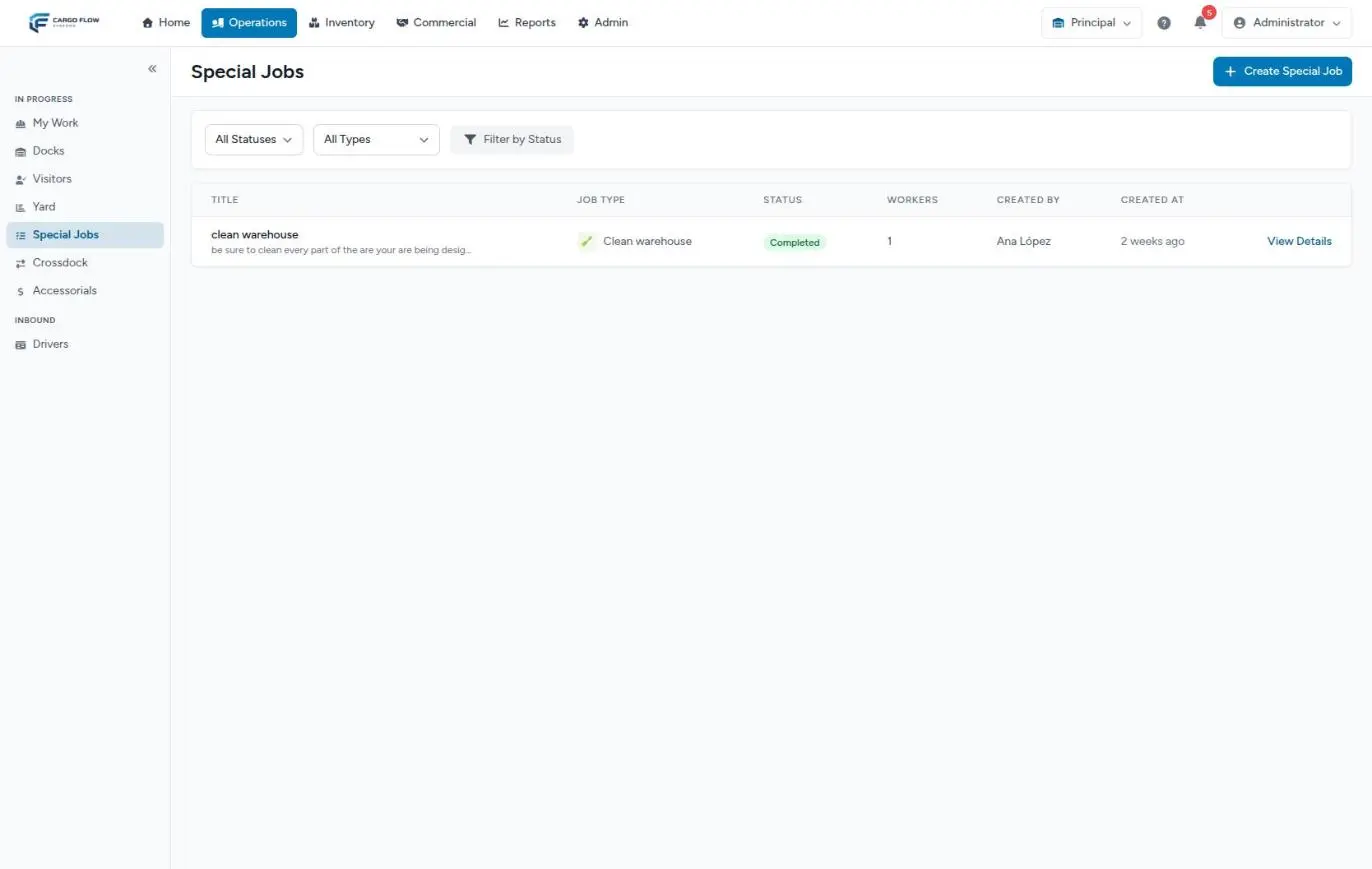
The list shows the Title (with the start of the description), the Job Type with its color, the Status, how many Workers, who created it and when, newest first.
Filter with All Statuses and All Types and press Filter by Status. On each row, View Details opens the job. If there are none, you see No Special Jobs.
Creating a special job
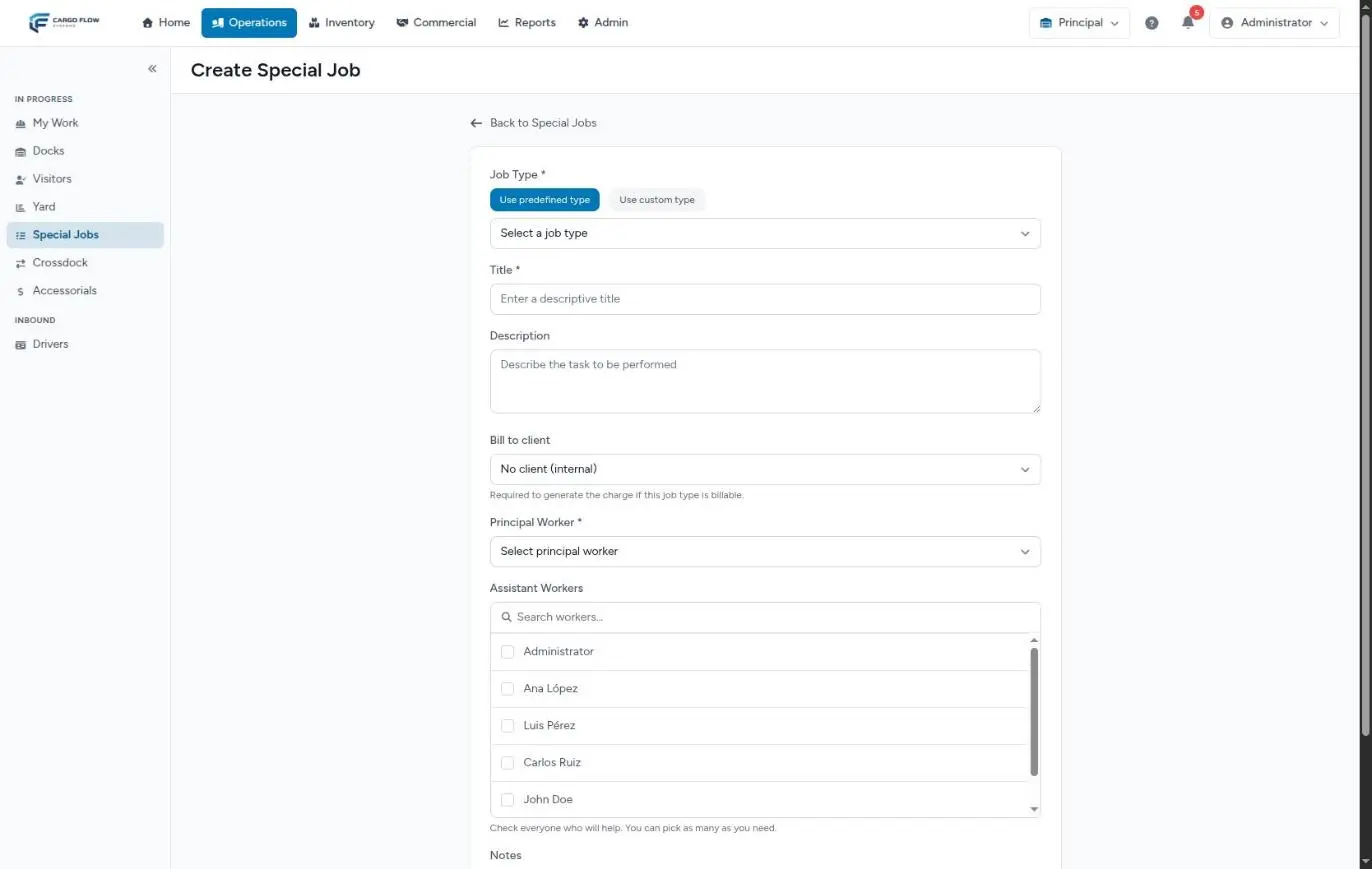
Press Create Special Job.
Each form field
| Field | Required | What it does |
|---|---|---|
| Job Type | No | With Use predefined type you pick one of the active types. With Use custom type you type a free name; the list shows it by that name, but with no color, max time or automatic billing. |
| Title | Yes | Up to 255 characters. It is what the worker sees in their list. |
| Description | No | Filled in with the type’s default description; adjust it with the specific instructions. |
| Bill to client | No | Only shows if the warehouse has the Accessorials module. No client (internal) by default. Needed to create any charge. |
| Principal Worker | Yes | The person in charge. |
| Assistant Workers | No | Check everyone who will help; there is a search box and a count of how many you picked. If you also check the principal as assistant, it is ignored. |
| Custom Fields | Depends on the type | The extra data the type asks for (for example "area" or "number of pallets"). Those marked required are enforced on save. |
| Notes | No | Additional notes. |
Press Create Special Job. You see Special job created successfully. and land on the Special Job Details screen. Billable services are added afterwards, with Edit.
Statuses and progress
Each worker has their own assignment, which goes through Assigned, In Progress and Completed. The job’s status is calculated from them:
| Status | When |
|---|---|
| Pending | Nobody has started. |
| In Progress | At least one worker started it. |
| Completed | Every worker completed their part. At that moment the billable services are charged. |
| Cancelled | A supervisor cancelled it. |
The Progress bar on the detail shows how many assignments are completed out of the total (for example 1/2).
Where it enters the worker’s queue
Each assignment is placed at the end of that person’s work queue, the same numbered queue as their dock jobs. If the operator has three dock jobs, the special job takes position 4. When one finishes, the queue renumbers. There is no button to move a special job up: reordering in the FIFO view only moves dock jobs. If it is urgent, assign it when the person has a light load or tell them directly. Yard moves always come before everything.
How the worker does it
When it is their turn, they see it in My Work as Current Special Job (see The operator app):
- They see the title, type, description, Your Role (Principal or Assistant), their Team and the Max Time if the type has one (or No time limit set).
- They press Start Work. Their time starts running.
- They take evidence photos with the phone camera. Everyone’s photos go into a single job gallery.
- They press Complete Work and confirm with Yes, Complete. At least one photo is needed.
Each worker completes their own part; the job completes when all of them finish. Their daily numbers (jobs today, completed today) include special jobs.
The detail screen
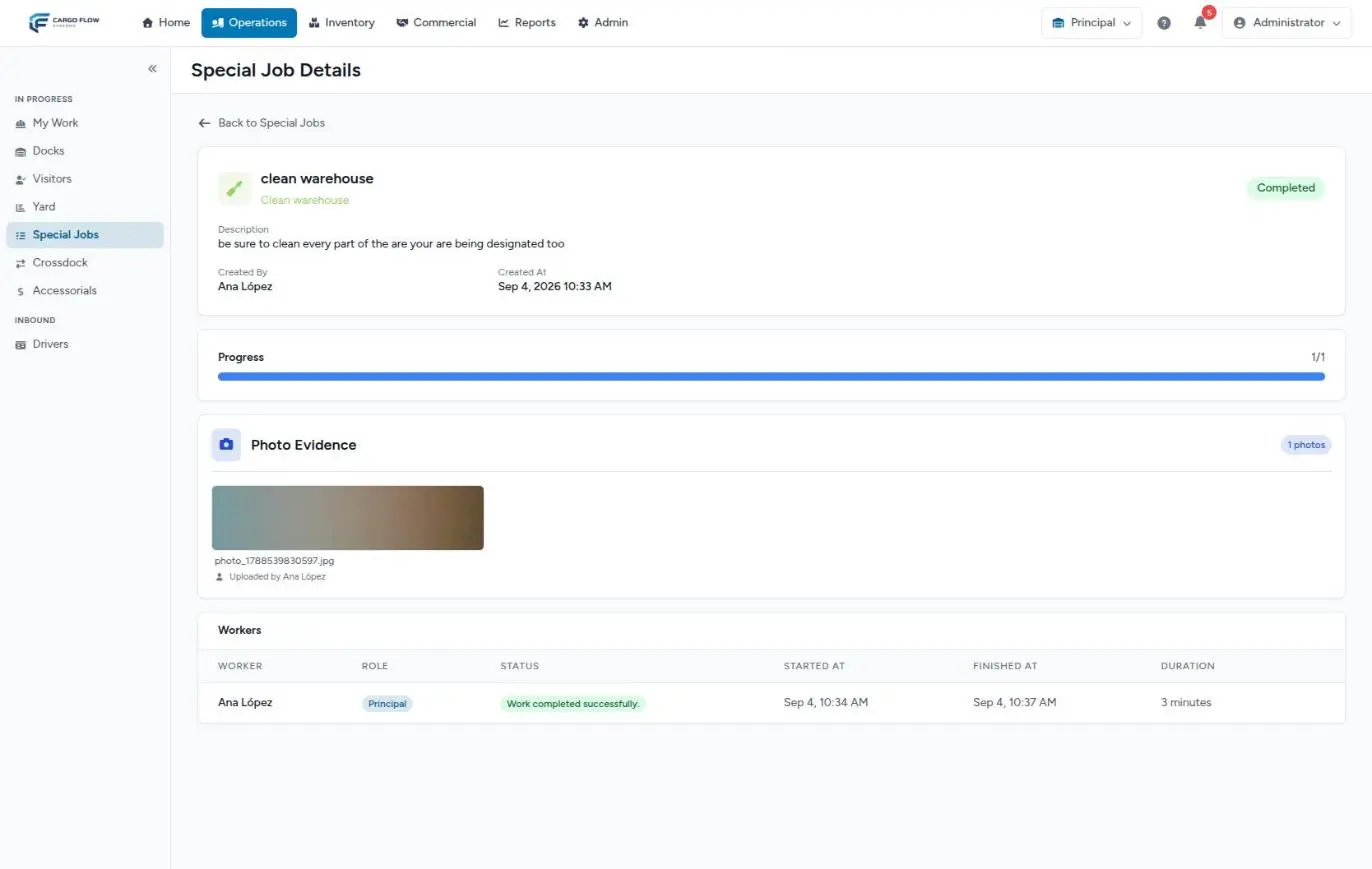
- Header — title, type, status, description, notes, who created it and when.
- Billing — the customer and the charges created, or No charge generated for this job.
- Additional Information — the custom fields that were filled in.
- Progress — completed assignments out of the total.
- Photo Evidence — every photo.
- Workers — each person with role, status, start time, finish time and duration. The supervisor can press Start Work or Complete Work for a worker (no photo is required that way).
- The Edit button (if not completed or cancelled), Cancel Job and Delete Job (if not completed).
Editing a special job
It can be edited while Pending or In Progress: title, description, notes, customer, custom fields and workers. The type cannot be changed after creation. If you change the principal or remove assistants, their assignments are deleted and their queues renumber; new people are placed at the end of theirs. Editing is also where you add Billable services. If you try to edit a completed or cancelled one, you see This job cannot be edited.
Billing the customer, in short
- Accessorial linked to the type: if the type has an accessorial and you choose the customer, a charge with quantity 1 is created on save.
- Billable services: added when editing and charged when the job completes, at the customer’s rate or the catalog base price.
Full details are in Special job types and billing; the path from charge to invoice, in Where each charge comes from.
Cancel and delete
- Cancel Job — asks Are you sure you want to cancel this job? This will cancel all non-completed assignments. Marks it Cancelled, removes it from the queue of those who had not completed it and voids its charges (accessorial and unbilled services). You are taken back to the list.
- Delete Job — not allowed on completed jobs (This job cannot be deleted.). Voids the charges, removes the assignments and takes the job off the list.
Example
Pacific Brands asks for 40 cases to be relabeled. The supervisor creates the job: type Relabeling (90-minute max time, linked accessorial), title Relabel lot 7781, customer Pacific Brands, principal Ana López, assistant Carlos Ruiz. On save, the Relabeling accessorial charge is created. In edit she adds the service Labeling per piece, quantity 40. Ana and Carlos see it at the end of their queues; they start at 10:00, take before and after photos, and complete at 11:05 and 11:10. When Carlos completes, the job becomes Completed and the 40 pieces are charged at the customer’s rate.
Messages you may see
| Message | Meaning |
|---|---|
| (field names) — The … field is required. | A required custom field of the type is missing; the message starts with the list of missing ones. |
| That person cannot be assigned jobs in this warehouse… | The chosen worker lacks the permissions to receive special jobs. |
| This assignment cannot be started. | It was already started or completed. |
| This assignment cannot be completed. | It has not been started yet. |
| You are not authorized to perform this action. | You tried to start or complete someone else’s part without Write Special Jobs. |
Best practices
- Create types for recurring tasks: description, time and billing come for free.
- State in the description which photos are expected (before and after).
- Choose the customer when the task is for them: without a customer no charge is created.
- Remember it goes to the end of the worker’s queue: check how much work they have ahead.
- Prefer Delete over Cancel when nobody has worked on it yet.
Troubleshooting
A person is missing from the workers list.
- Their role lacks the permissions to receive special jobs in this warehouse. Check it in Users & access.
The worker doesn’t see the job in My Work.
- They have other work ahead in their queue: it appears under Upcoming Jobs. Yard moves always come first.
Bill to client is missing.
- The warehouse lacks the Accessorials module.
No charge was created on completion.
- The job has no customer or no billable services. See the billing troubleshooting.
Frequently asked questions
What happens if it goes over the max time?
In the worker’s app the clock changes color: green (On track), yellow past 75% (Approaching time limit) and red once exceeded (Over time limit). No notification is sent and the job is not stopped.
Do I need the yard module?
Yes. Special jobs are part of the yard module: if the warehouse doesn’t have it, the option does not appear.
Can the supervisor complete a worker’s part?
Yes, from the workers table on the detail, with Start Work and Complete Work. Use it when the person doesn’t have their phone; it is recorded with the time you pressed it.
Need help?
If something did not work as expected, our support team can help you.
Was this article helpful?