Driver notifications by SMS and WhatsApp
Summary
The system can text the driver when a dock is assigned, when it changes and, in some installations, when the job is finished or the trailer moves in the yard. That way the driver doesn’t have to keep asking at the office. Depending on the phone’s country code, the message goes out by SMS or by WhatsApp.
This article covers the messages from the driver’s side and from dock operations. The full settings screen (every switch, including the Visitors ones) is described in Setting up SMS and WhatsApp.
Before you start
- The notifications module active in the warehouse. Without it no message goes out, even if everything else is on.
- Permission to configure: Configure Users. By default only the Super Admin role has it; an administrator only has it if it was added to their role.
- The messaging provider account (sending number and credentials) is set up by the Cargoflow team, not entered on screen. To change it, open a ticket.
- The driver’s phone with country code, entered at the kiosk (see Driver registration).
Where it is configured
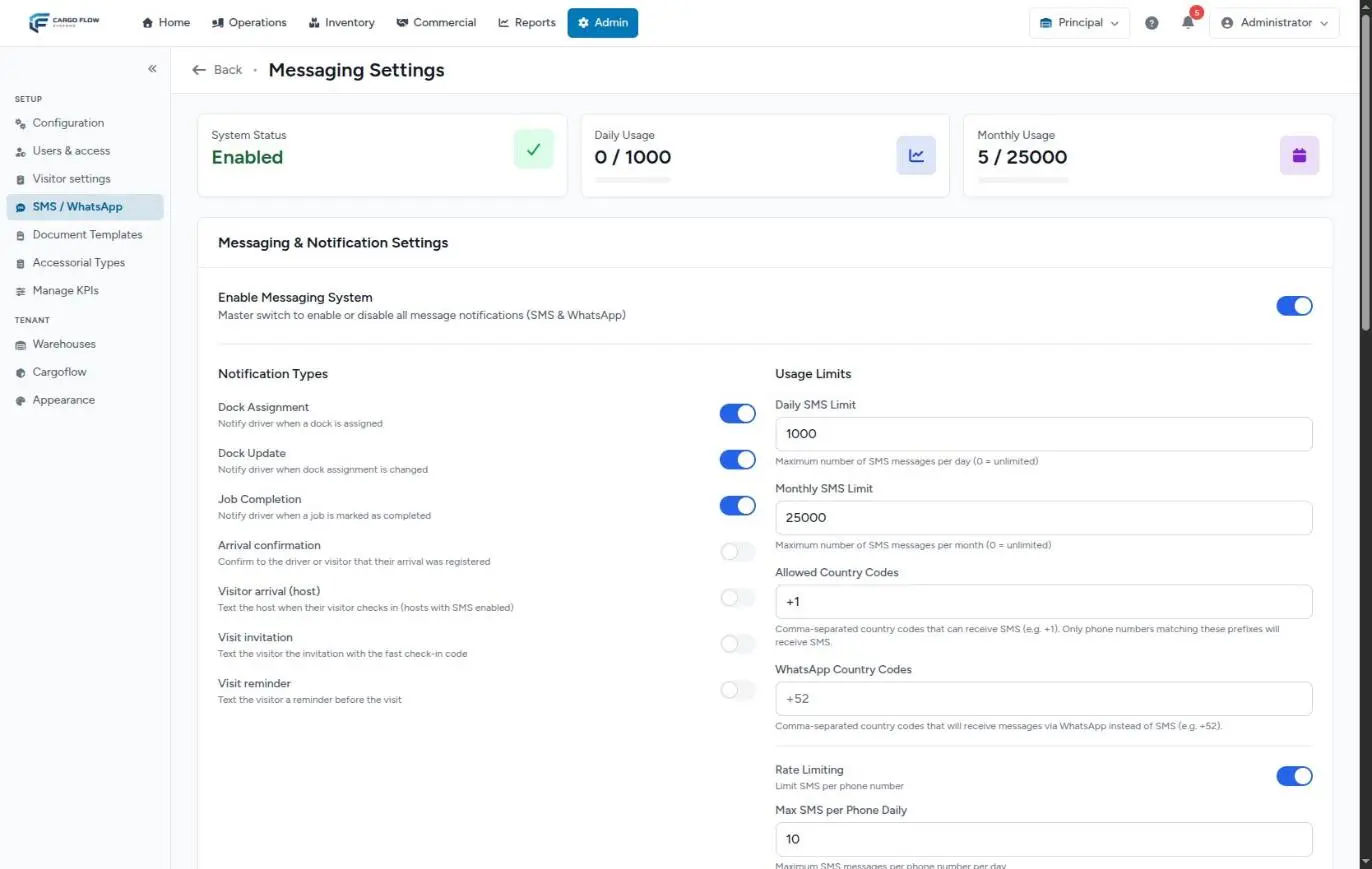
In Admin, choose SMS / WhatsApp in the sidebar. Messaging Settings opens.
At the top there are three indicators: System Status (enabled or not), Daily Usage and Monthly Usage (messages sent against the limit).
The master switch, Enable Messaging System, turns all messages (SMS and WhatsApp) on or off at once. Below it, Notification Types has one switch per message.
Driver messages and when they go out
| Message (switch) | Exactly when it goes out |
|---|---|
| Dock Assignment | When a dock is assigned from the Assign Driver window and you answer yes to Do you want to notify the driver?. Only if the chosen dock is a regular dock: nothing is sent for a Waiting-type dock. |
| Dock Update | When you change a job’s dock in the Job Details, click Update Job and accept Do you want to notify the driver about the dock change?. The job must have a driver with a phone. |
| Arrival confirmation | As soon as the driver finishes registering at the kiosk (not when staff create the job with Create Job). Off by default. |
| Job Completion | Only in installations with extended notifications (see below). |
| Visitor arrival, Visit invitation, Visit reminder | Not for drivers: they belong to the Visitors module. |
Creating a job with Create Job sends no message, and neither does assigning without answering yes.
Extended notifications
Some installations have extended driver notifications turned on, on request. With them the driver also receives:
- Job finished, when the operator answers Yes, Release Dock or the supervisor clicks Release.
- Trailer movements: moved to the yard (with the spot, when it already has one), parked in the yard on a direct entry, on its way back to a dock (with the dock) and released from its spot.
Without this option those messages don’t go out even if the Job Completion switch is on. If you want them, ask support.
What each message says
- Dock assignment: “Hello name, a loading dock has been assigned for your delivery/pickup. Please proceed to #dock, chock your wheels, and un-hook your trailer’s airline. Thank you!”
- Dock change: tells the driver the door for the delivery or pickup was updated and gives the new number, with the same instructions.
- Arrival confirmation: says the arrival was recorded, with the visit number, and asks the driver to wait at reception.
- Job finished: says the process is complete, that a warehouse associate will bring the paperwork and to wait until cleared to leave.
- Yard movement: “Your trailer was moved to yard spot A-07. Thank you!” (or parked, on its way to a dock, released).
SMS messages end with a line to unsubscribe by replying STOP.
Everything that has to be true
- The notifications module is active in the warehouse.
- Enable Messaging System is on.
- That message type’s switch is on.
- The driver has a phone number.
- The country code is on the SMS list or the WhatsApp list.
- No daily, monthly or per-phone limit has been reached.
- For assignment and change messages: the person answered yes to the notify question.
If any of these fails, the message doesn’t go out. When it fails on country code or a limit, it is logged as blocked; when a switch is off, nothing is logged.
The message language
The message arrives in the language the driver chose at the kiosk (Spanish or English). Drivers entered with Create Job, or created by the yard to move a trailer, default to English, so their dock change messages go out in English.
SMS or WhatsApp?
Under WhatsApp Country Codes list the country codes that get WhatsApp instead of SMS (for example +52). Under Allowed Country Codes, the ones that get SMS (for example +1). A phone with a WhatsApp code gets WhatsApp; one with an SMS code gets SMS; one on neither list gets nothing.
WhatsApp only allows messages built from approved templates. The Cargoflow team registers each message’s template; if a message has no template, the WhatsApp send fails and is recorded in the log.
Usage limits
- Daily SMS Limit and Monthly SMS Limit — the warehouse’s maximum. Once reached, messages stop and are logged as blocked.
- Rate Limiting with Max SMS per Phone Daily — avoids sending too many messages to the same number in a day (for example, after several reassignments).
- Reset Counters sets the daily and monthly usage back to zero. Save Changes saves everything.
Testing and the message log
Test Messaging has two forms, Send Test SMS and Send Test WhatsApp: enter a phone and a message of up to 160 characters. The test follows the same limits and country codes, so it tells you whether a number will receive notifications. If the settings block it, you get Test message was blocked by system settings or limits.
Recent Message Logs shows the last 50 sends with date, phone, type, driver and result (sent, failed or blocked), and downloads as CSV. When the provider reports that a message was not delivered to the phone, the log reflects it.
Example
The warehouse has SMS for +1 and WhatsApp for +52, a daily limit of 300 and a maximum of 5 per phone. Luis Pérez registers at the kiosk in Spanish with +528112345678. The supervisor assigns him to dock 4 and accepts notifying: Luis gets the Spanish assignment message on WhatsApp pointing to door #4. Twenty minutes later she moves him to dock 6 and accepts notifying: he gets the change. The log shows two sends of the matching types with a sent result.
Special cases and limits
- Waiting dock: assigning to a Waiting-type dock sends nothing; when you later move the driver to a regular dock, accept the change notification.
- Waiting area: sending a driver to the waiting area sends no message.
- Consent: the kiosk asks the driver to accept messages; in some installations consent is given automatically when a phone is entered.
- No retries: a blocked or failed message is not resent automatically. Reach the driver another way.
Best practices
- Ask drivers to enter their phone with country code at the kiosk.
- Send a test to your own phone after changing any setting.
- Check the log when a driver says nothing arrived: it shows whether it was blocked and why.
- Keep the per-phone limit on: it avoids ten messages to the same driver because of reassignments.
Troubleshooting
No message goes out at all.
- Check the module is active, Enable Messaging System is on and the message type is enabled.
- Check no limit is 0 or already reached.
One particular driver gets nothing.
- The country code is on neither list, the per-phone maximum for the day was reached, or the driver replied STOP. Look them up in the log.
I assigned and answered yes, but the log is empty.
- The dock was a Waiting-type dock, or the Dock Assignment switch is off.
The job-finished message never goes out.
- It is only sent with extended notifications on. Ask support.
WhatsApp fails and SMS works.
- The approved template for that message is missing. Open a ticket with the attempt time shown in the log.
Frequently asked questions
Which language does the message arrive in?
The one the driver chose when registering. Drivers created by hand default to English.
Do messages cost money?
Each message sent uses credit from the provider account. That is why the daily, monthly and per-phone limits exist. Check with Cargoflow how it is billed under your contract.
What happens if the driver replies STOP?
The driver gets the confirmation You have unsubscribed from notifications. You will no longer receive messages. The system doesn’t mark the driver as unsubscribed: the block is applied by the messaging provider, so later attempts to that number show as failed in the log.
Need help?
If something did not work as expected, our support team can help you.
Was this article helpful?