Setting up kiosks
What a kiosk is
A kiosk is a physical check-in point: the reception tablet, the gate house screen, the QR code on the warehouse entrance. Each has its own web address and QR code, and each offers only the visit types you decide.
The purpose is obvious: at the gate house you want drivers; at reception you want visitors and suppliers. Keeping "Delivery" off the reception tablet stops a driver from checking in at the wrong place. What the person sees at the kiosk is in The visitor kiosk, step by step.
Before you start
- Configure Visits permission (admin by default).
- The visit types you want to offer, active. See Visit types and their kiosk flow.
- To offer driver types, the warehouse needs the docks or yard module.
The general kiosk
Go to Visitor settings and open the Kiosks tab. At the top there is always the General kiosk: the warehouse address, which offers every visible type, with the options from the Settings tab. It has its QR button to download it. If you never create another kiosk, this one keeps working as always.
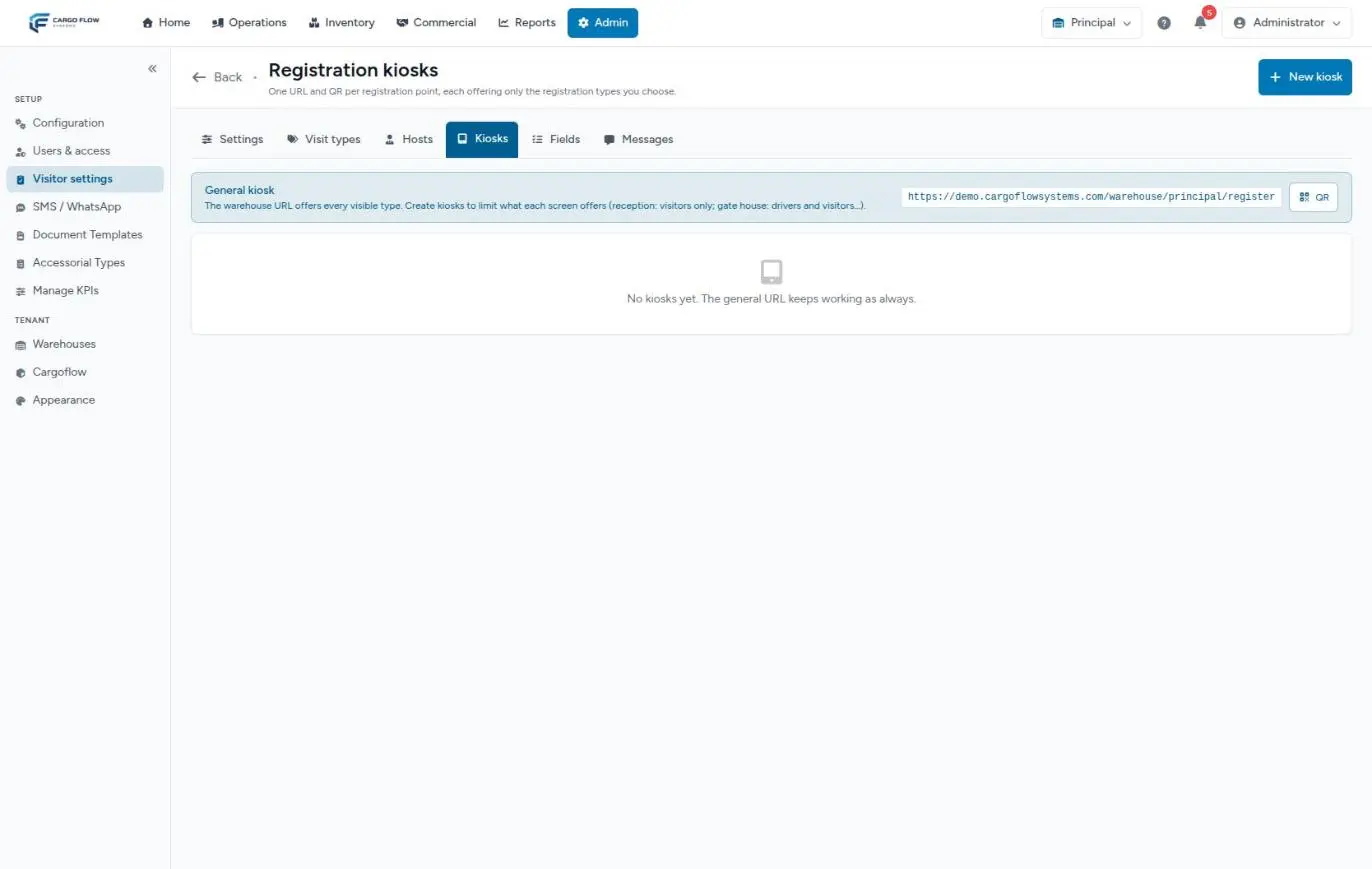
If the warehouse has no docks, there is no menu option to open the kiosk: its address only shows here and on the Settings tab (Kiosk address).
Adding a kiosk
- On the Kiosks tab, tap New kiosk.
- Fill in the fields (table below).
- Save: "Kiosk "…" created." appears.
- In the list, use Open kiosk to test it and Download QR to print it (a PNG image).
What each field asks for
| Field | Accepts |
|---|---|
| Name | Required, up to 120 characters. One people recognize: "Reception", "Gate house". |
| URL code | Generated from the name (lowercase, digits and dashes). You can adjust it; the final address shows below. If it already exists, -2, -3… is appended. |
| Location | A reference for your team, up to 160 characters. |
| Registration types | At least one. Any type except Internal. |
| Driver subtypes | Only with Delivery or Pickup: warehouse delivery, yard drop-off, warehouse pickup, yard pickup. Warehouse ones need docks; yard ones, the yard module. None or all checked = no restriction. |
| Languages | English, Spanish or both. Empty = both. |
| Welcome message | Up to 160 characters per language. Empty: the one from the settings is used. |
| Offer "I have an invitation", Offer "Check out" | On by default. |
| Show QR to register from a phone | On by default. Useful on a wall QR; turn it off on a staffed tablet. |
| Active | Off, its address stops working. |
Example: reception and gate house
- Reception: Visitor and Auditor types; English and Spanish; "I have an invitation" and "Check out" on; floating QR off (the tablet is staffed).
- Yard gate: Delivery and Pickup types; yard drop-off and yard pickup subtypes; no extras. Scanning its QR code, drivers see their two options right away.
Turning off or deleting a kiosk
The difference between turning off and deleting is that a kiosk turned off keeps its setup so you can turn it back on. Deleting asks for confirmation: "Delete this kiosk? Its QR stops working; visits keep their history."
Troubleshooting
The printed QR code leads to a "not found" page.
- The kiosk was turned off, deleted or had its URL code changed. Turn it back on, or download and print the new QR code.
- If every kiosk gives "not found", the visitors module is off in the warehouse.
"This kiosk does not offer that registration type."
- Someone opened a form for a type that kiosk does not have checked. Add it to the kiosk or send the person to the right kiosk.
Driver types do not show when creating the kiosk.
- The warehouse has neither the docks nor the yard module active.
Frequently asked questions
Why are no text messages going out to hosts?
Text messages (SMS and WhatsApp) belong to another module. If your warehouse does not have it, notifications keep arriving by email and bell, and the text message simply is not sent. See Hosts and notifications.
Why can I not put "Internal" on a kiosk?
Because internal visits are registered by reception, not by the person themselves. The Internal type is only available in Register visitor and in invitations.
Need help?
If something did not work as expected, our support team can help you.
Was this article helpful?