The operator report (PDF)
Summary
The Operator’s Job Detail Report is a PDF that gathers on one sheet everything done on a dock job: which document was worked, who did it and how long it took, what was loaded or received against what was expected, which check items were met, the photos, the accessorials charged, a timeline with the time of each step, and signature lines. It is the document you pull when a customer asks “what happened with my truck?”.
Before you start
- The Docks module active in the warehouse.
- Permission: any one of these is enough: Write Docks, Read All Jobs, Read Own Jobs, Read Yard, Read Dock Reports, Read Yard Reports, Read History Reports, View Receiving or View Shipping. In practice almost anyone in operations can open it, and so can people who only look up receipts or shipments.
- For the report to have lines and a document, the job must be linked to a receipt or a shipment (see Linking the job to its receipt or shipment).
Where to open it
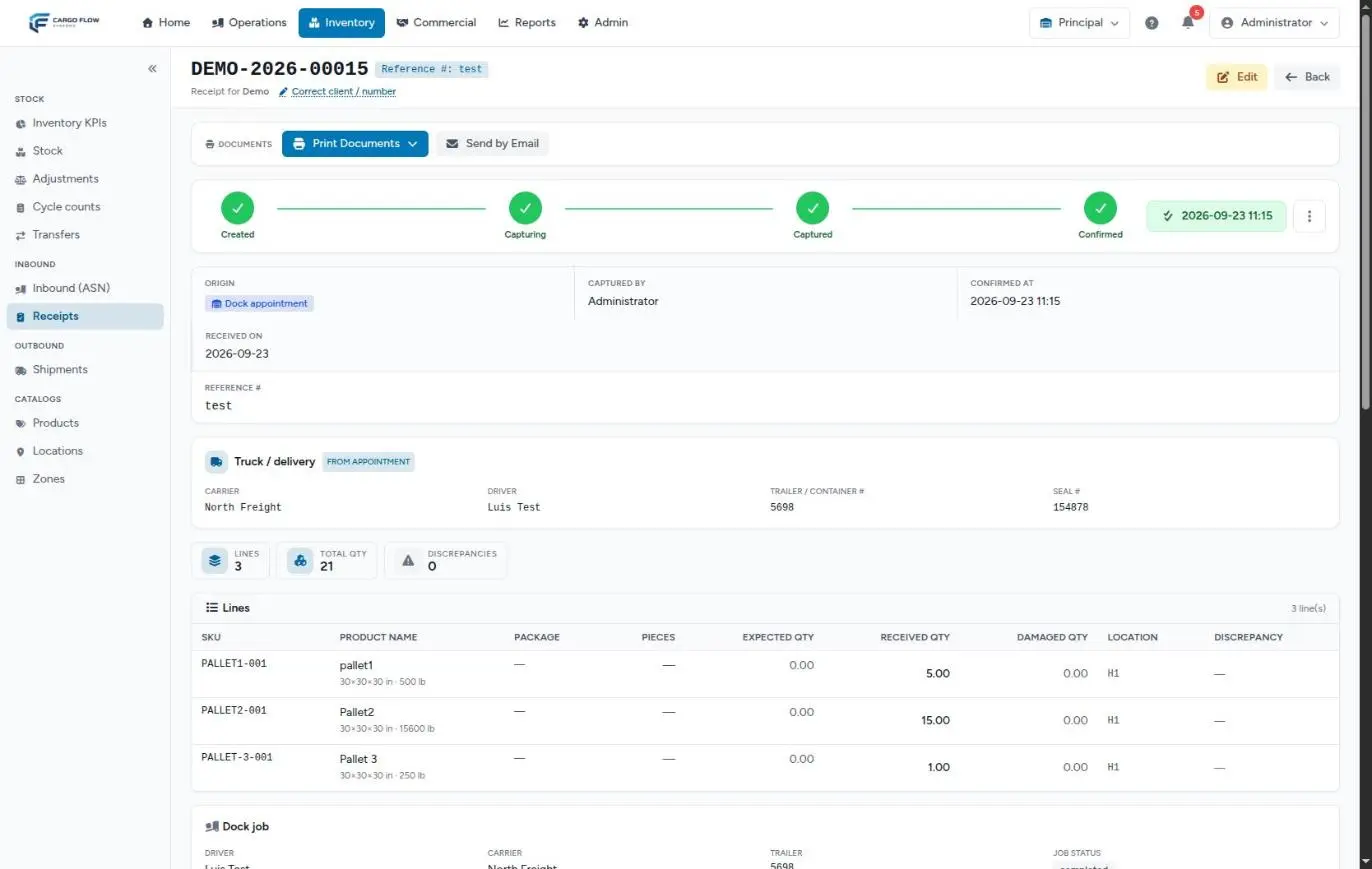
- Open the linked receipt or shipment (in Receiving or Shipping).
- Scroll to the dock job card: it shows the driver, carrier, trailer, job status and notes.
- Click View operator’s job details. The PDF opens in a new tab; print or save it from the browser viewer. It is named after the job number.
The report is built on the spot, from the data the job has at that moment. It can be opened while the job is still running, although it is normally pulled once the job is closed.
What each section contains
Header and job information
At the top, the company name and the title, with the job number as a barcode. If the warehouse set up a document number sequence for dock jobs, that number is used; otherwise a number derived from the job (see Document numbers).
Job Information: job number, type, status, priority, dock, warehouse and customer.
The linked document
Receipt Information (deliveries) or Shipment Information (pickups and loads): number, BOL (shipments), customer order, trailer, seal and carrier. If the job has several documents, this card shows the first one; the lines do include all of them. With no linked document it says No linked document.
Operator and times
Operator Information: operator, phone and supervisor. The supervisor is whoever reviewed the receipt (deliveries) or closed the shipment (pickups); until that happens it is blank.
Time Summary: assignment, arrival, start and finish times, and the total time in minutes.
Loaded or received lines
Shipment Loaded on pickups: one row per product with SKU, description, ordered, loaded, unit of measure and total. On deliveries the same table compares expected and received; note that in the English PDF its title also reads “Shipment Received”, even though it is the receipt.
Verification and photos
Loading Verification: each verification list item with its status, who verified it, its notes and two tags: Required and, when missing, Photo missing. See The operator’s loading record and verification.
Job Photos: every photo of the job, including the verification list photos, with the total in parentheses.
Accessorials and notes
The accessorials section (titled “Accessories” in the PDF) lists extra services recorded on the job: type, quantity and, once priced, the amount. Operator Notes: what the operator wrote in My Notes; if nothing, the supervisor’s notes.
Activity timeline
Activity Timeline (Audit Trail): a time-ordered list rebuilt from the system’s timestamps: job assigned to (operator), driver checked in at (dock), job started, each item verified, each photo captured, each accessorial, work finished and job completed.
Signatures and footer
Three signature lines with name and date: Operator Signature, Supervisor Signature and Driver Signature. There is no digital signature: print it and sign by hand. The footer shows when and by whom it was generated.
What it is for
- Customer claims: shortages, damage or delays, with photos and times.
- Internal audit: who did what and when, without relying on the shift’s memory.
- Evidence for the carrier: seal, trailer and signatures.
- Reviewing an operator: times and verifications of a specific job (for averages use the KPI panel).
To see where it fits among the other documents of the flow, read Document numbers and documents across the flow.
Example: a shortage claim
Valley Distributors claims it received 38 cases instead of 40. The supervisor opens shipment EMB-00231, clicks View operator’s job details and finds: line 2 ordered 12, loaded 10; in Operator Notes, “2 damaged cases, kept in the warehouse”; two photos of the damaged cases at 9:14; the “Load secured” item verified by Luis Pérez at 9:20; and seal 998127. The PDF goes to the customer with the driver’s and supervisor’s signatures.
Special cases and limits
- Jobs without a document: the report still renders, without lines or document. Today it only opens from a receipt or shipment card, so in practice there is always one.
- Priority: on a closed job it prints 0, because closing takes it out of the operator’s line-up.
- Job completed by…: the timeline shows the finish time with the operator’s name, even when the supervisor released the driver. If the job is still in Work Finished, that line already appears with the time the operator finished.
- Several pages: a job with many photos or lines spans more than one page, but the footer always says “Page 1 of 1”.
- Format: letter size, portrait.
Best practices
- Ask operators for photos of the seal and any damage: they are the first thing checked in a claim.
- Pull the report once the receipt is reviewed or the shipment closed, so the supervisor appears.
- Keep the signed PDF with the shipment or receipt paperwork.
Troubleshooting
I don’t see the View operator’s job details link.
- The document is not linked to a dock job, or the warehouse doesn’t have the Docks module.
The report has no lines.
- The job has no linked document or the document has no captured lines.
The supervisor is blank.
- The receipt hasn’t been reviewed or the shipment hasn’t been closed yet.
A verification shows “Photo missing”.
- The item asks for a photo but is not required: the system lets the job finish without its photos and the report flags it. If that photo matters, mark the item as Required in the list setup.
Frequently asked questions
Can the customer see it in the client portal?
No. The report only opens from the internal system. If the customer needs it, download it and send it.
Does the report change if I correct something later?
Yes. No copy is stored: every time you open it, it is built from the data at that moment. If you need the version from a given day, save the PDF that day.
Need help?
If something did not work as expected, our support team can help you.
Was this article helpful?