The operator’s loading record and verification
Summary
While a dock job is running, the operator app shows panels that record what physically happened: what was loaded and under which seal, what was received and where it was put away, which loose items came off the trailer, and which check items were met, with photos. All of it stays on the job, feeds the linked receipt or shipment, and shows up in the operator report.
The underlying rule: the operator records, the supervisor closes. Nothing captured here confirms a receipt or closes a shipment.
Before you start
- The job must be In Progress and assigned to the operator (permission Read Own Jobs).
- Loading record: the Shipping module and a shipment linked to the pickup or load job.
- Receiving: the Receiving module, a receipt linked to the delivery, and the Capture Receipts permission (check the role in Users & access).
- Items & Inventory: the Inventory module and the View Inventory permission.
- Verification list: items set up and active in the warehouse; the pickup list uses the Shipping module and the receiving list the Receiving module.
- To link the documents, see Linking the job to its receipt or shipment.
Which panel shows on each job
| Job type | Panels |
|---|---|
| Delivery | Receiving (with a receipt and the permission), Items & Inventory, Receiving verification. |
| Pickup and Load | Loading record (with a shipment), Items & Inventory, Loading verification. |
| Cross-dock | Receiving and Loading record together, with photos per leg. No verification list. |
| Internal | Items & Inventory. No verification list. |
The loading record
The Loading record panel shows on pickups and loads with one or more linked shipments. It lists each shipment line with the location it was allocated from (or No reserved location), and lines already shipped are marked Shipped.
- Seal number — the trailer seal. It is copied to the shipment only if the shipment has none yet.
- Check each line you loaded. Checking is verifying: a checked line is marked as reviewed.
- Adjust the quantity if you loaded less. It comes pre-filled with the allocated quantity; if you enter more than allocated, the allocated quantity is stored.
- Tap Save loading. You get Loading saved.
What you save here is the quantity the shipment close will take out of inventory. A supervisor closes the shipment from Shipping, with the close window already pre-filled with your loading (see Closing a shipment). Unverified lines block that close.
The loading record from the board
If a supervisor finishes a pickup from the board (the Finish button in the FIFO view or Work Finished in the job details) and the job has linked shipments, the Loading record window opens first: check the lines, enter the seal and tap Finish loading. Here the seal and quantities are stored together with the finish.
The Receiving panel
On deliveries with a linked receipt, the Receiving panel lists each receipt’s expected lines:
- Expected — what the notice or receipt says.
- Received — the quantity that came off.
- Location — where it was put away, from the warehouse’s locations.
Tap Save receiving. The system writes quantities and locations on the receipt lines, flags the difference as over or short based on the quantity (without touching lines already classified as damaged or wrong item) and leaves the receipt in progress. Lots, damage, receipt photos and confirmation stay in Receiving (see Receipt capture and review).
If the receipt was created at the dock with no lines, the panel says This receipt was created at the dock with no lines: capture them to record quantities and putaway. with the Capture receipt lines button; if the operator cannot capture them, they are told to ask a supervisor.
Items & Inventory
The Items & Inventory panel records what actually came off the trailer when it isn’t on a notice: item description, quantity, weight, dimensions (L × W × H) and location, plus Seal #. Add rows with Add item and save with Save items.
- It arrives pre-filled with what the supervisor wrote in the dock’s Receiving Record (see Assigning a driver from the bell): the operator only confirms or corrects.
- If the job has exactly one linked receipt, when the job is finished each row with a description becomes a new line on that receipt, with a one-time product created for the customer. It happens once: finishing again does not duplicate it.
- On pickups, internal jobs or jobs with several receipts, the rows stay on the job as a record.
- A row without a quantity reaches the receipt with quantity 0: fill it in before finishing.
The verification list
While the job is running, Loading verification (pickups and loads) or Receiving verification (deliveries) appears with the items the warehouse set up, in their order:
- Each item has a checkbox. Items marked Required must be checked to finish.
- When checking an item you can add a note (optional, up to 500 characters).
- Items that ask for photos show a counter (for example 0/2) and the Add photo button, which opens the rear camera. These photos upload immediately and also appear in the job gallery, labeled From the verification checklist.
- On save, each item records who verified it and when (Verified by …).
The lock is enforced by the server: even if someone tries to finish from another screen, a missing required item or photo stops the finish.
Which photos are required
| Situation | What is required to finish |
|---|---|
| There is a verification list for that job type | The minimum photos of each item that asks for them. No loose photo required. |
| There is no verification list | At least one loose photo of the job. |
| Cross-dock | At least one unload photo (to the receipt) and one load photo (to the shipment). |
Setting up the verification list
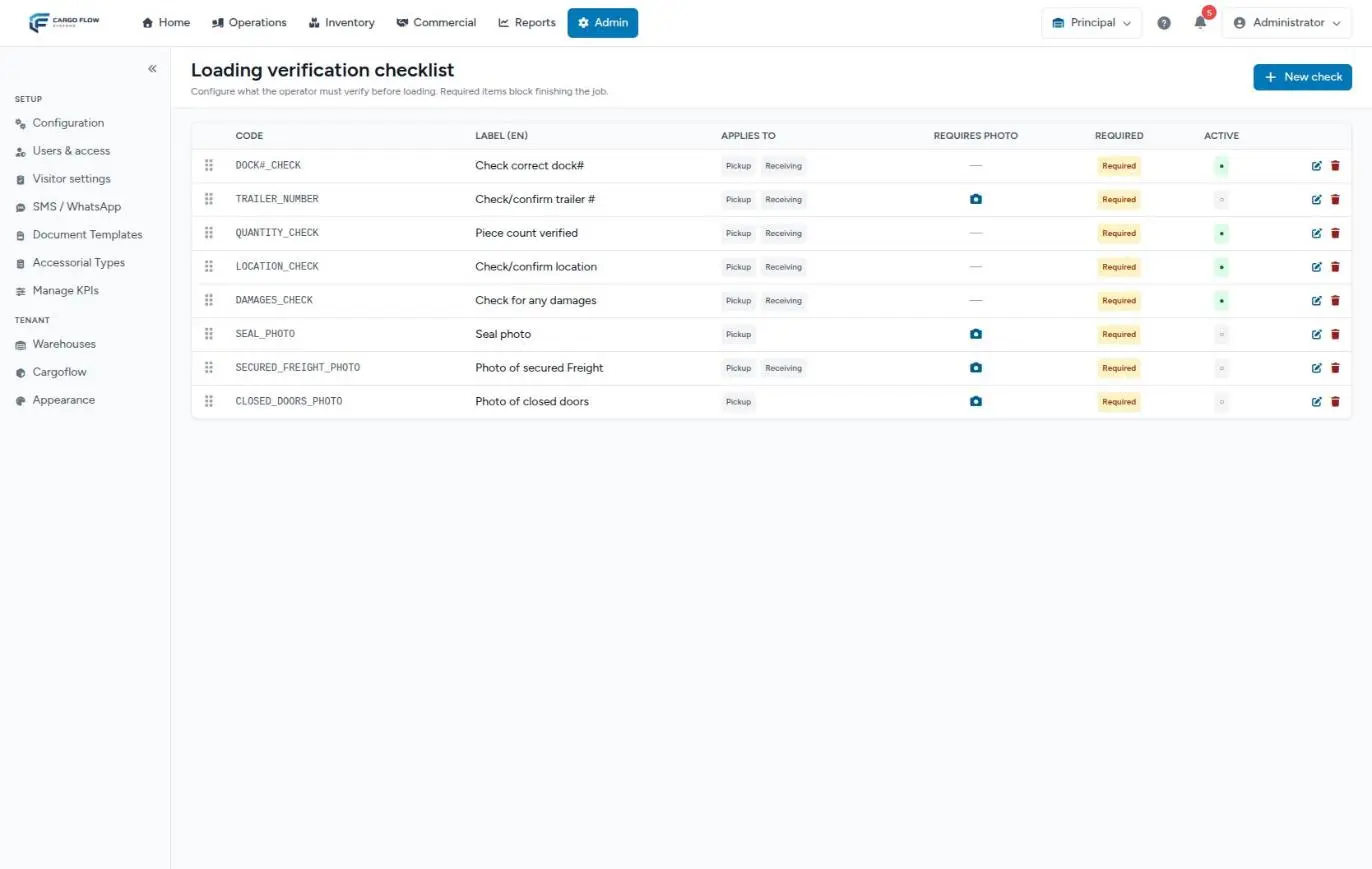
The list is per warehouse. Go to Admin › Configuration and open the loading verification card. It requires the Shipping module and the Create Shipments permission.
- Tap New check.
- Code — a short identifier, unique in the warehouse (for example
sello_foto). - Label (ES) and Label (EN) — the text the operator sees in each language.
- Applies to — pickup (which also covers loads), receiving, or both.
- Required — when set, the job cannot be finished without checking it.
- Requires photo and Min photos — how many photos the item asks for (1 to 20).
- Active — turn it off to stop asking for it without deleting it.
What happens in other modules
- Shipping: the seal and loaded quantities pre-fill the shipment close; when it closes, the loaded quantity leaves inventory and the outbound documents are generated. See From order to departure.
- Receiving: quantities, locations and items stay on the receipt in progress; the supervisor sends it to review and confirms it, and that is when stock and the customer notice are created. See From notice to stock.
- Products: each loose item pushed to a receipt creates a one-time product for the customer, which does not clutter their catalog.
- Operator report: lines, verifications (with missing photos flagged), photos and notes print on the PDF.
Example: a pickup with a seal
Luis Pérez loads shipment EMB-00231 for Valley Distributors: three allocated lines of 20, 12 and 8 cases. The warehouse requires two items: “Seal applied” (1 photo) and “Load secured” (2 photos). Luis starts, checks all three lines, changes the second to 10 because two cases were damaged, enters seal 998127 and taps Save loading. He photographs the seal and the straps twice, checks both items and taps FINISH JOB. The job finishes; the supervisor opens the shipment, sees the pre-filled loading (20, 10 and 8) and closes it: 38 cases leave inventory.
Special cases and limits
- Partial load: record what actually went on; the rest stays allocated on the shipment until the supervisor decides.
- Draft shipment or no lines: the job can still be started and finished; the panel is empty until a supervisor adds lines.
- Several receipts on one truck: per-line receiving works for all of them, but loose items are not pushed to any.
- Corrections afterward: once the job is finished the operator no longer sees the panels. Corrections are made on the receipt or shipment.
Messages you may see
| Message | What to do |
|---|---|
| Check at least one line to save the loading. | Check the lines you loaded before Save loading. |
| Capture a quantity or location on at least one line. | Fill in Received or Location on some line before Save receiving. |
| Complete the verification checklist before finishing: … | Check the items the message lists and take their minimum photos. |
| You don’t have access to record inventory lines on this job. | The Inventory module or your View Inventory permission is missing. The seal is still saved. |
| Could not save the loading record. / Could not save the receiving record. | Check the signal and save again. |
Best practices
- Save the loading as soon as you finish loading, before the final photos.
- Require photos only on items a customer might dispute (seal, damage, load secured): each mandatory photo is time at the dock.
- Write list labels in both languages: each operator sees their own.
- Fill in the Receiving Record at the dock so the operator only confirms.
Troubleshooting
The Loading record does not show.
- The job has no linked shipment, or the warehouse doesn’t have Shipping. Link it from the job details.
The Receiving panel does not show.
- A linked receipt or the Capture Receipts permission is missing.
The shipment doesn’t have the seal I entered.
- The shipment already had a seal and it isn’t overwritten, or you finished without tapping Save loading.
A list item shows up for nobody.
- It is inactive or has no box ticked under Applies to.
Frequently asked questions
Can I record more than was allocated?
No. On an allocated line, at most the allocated quantity is stored. If more freight went on, the supervisor has to adjust the shipment and its allocation.
Does the operator’s receiving already add stock?
No. It only leaves the quantities on the receipt. Stock is created when a supervisor confirms the receipt.
Need help?
If something did not work as expected, our support team can help you.
Was this article helpful?