Lots when receiving (and what happens with serial and expiry)
Summary
Products marked Lot tracked in the catalog ask for a lot number on each receipt line. The lot can be captured at any point before confirmation; without it, the receipt cannot be confirmed. On confirmation, the system keeps the stock separated by lot within each location.
The other two tracking flags, Serial tracked and Expiry tracked, do not ask for anything on the receipt yet: read the “Serial and expiry” section below before relying on them.
Before you start
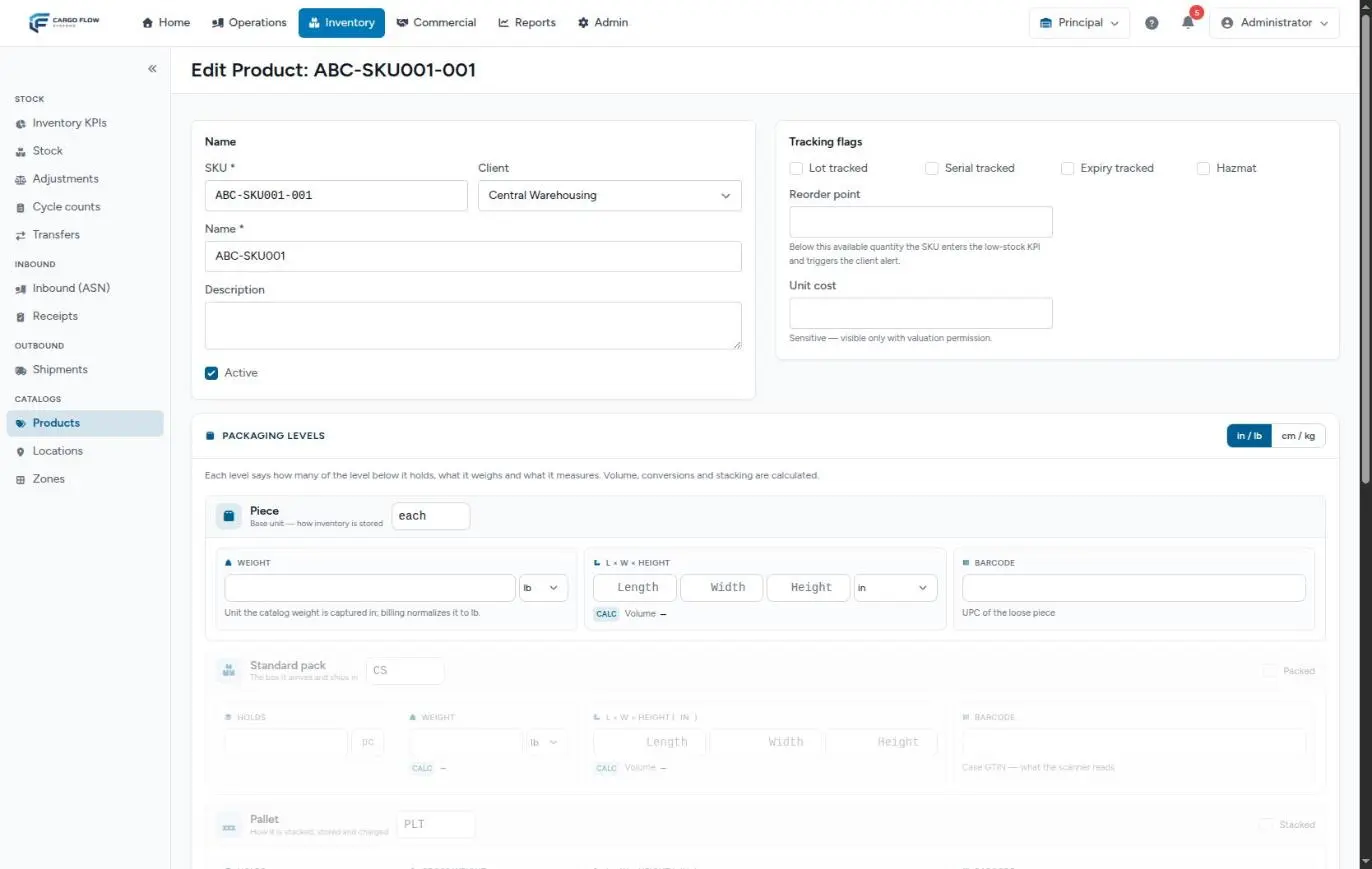
- On the product: the Lot tracked box in the Tracking flags section (Inventory › Products › edit). See Products and units.
- Inventory module enabled: without it the lot is not required.
- Permission: “Capture Receipts” to capture the lot.
Capturing the lot step by step
- Add the product to the receipt (scanning or searching).
- Click the line’s lot button: it reads “Lot # *” in amber while it is missing.
- Type the lot exactly as on the supplier label (up to 64 characters). The button shows the number and is no longer amber.
- Save — you can save and send to review without the lot, but the supervisor will not be able to confirm.
The lot button only appears on lot-tracked products. Other lines have no lot.
Several lots of the same product
A line carries a single lot. If two lots of the same product arrive, capture each lot on its own line:
- Scan the first lot and capture its quantity and lot number.
- Click Add from SKU list and pick the same product: a new line is created (the scanner would add to the first one).
- Capture the quantity and lot of the second.
With an advance ship notice, the expected quantity stays on the first line; compare the total of both lines with the expected quantity and adjust the discrepancy type if needed.
What happens on confirmation
- If the lot does not exist for that product, the system creates it (number, product, warehouse and client). If it exists, the same one is reused.
- Stock is kept by product, location and lot: two lots at the same location are two separate rows in Stock.
- The inbound movement stores the lot number.
- The receipt note and labels can print the lot (the built-in label has a “Lot” row).
Serial and expiry
L2309-EXP2027-03) and contact support to review your case.Where the lot is used afterwards
- Stock — can be viewed and filtered by lot. See Viewing stock.
- Shipments — reservations are made on stock rows, which are separated by lot, so each outbound knows which lot it took. See Creating a shipment.
- Portal — the customer sees the lot of their stock.
- Traceability — stock history shows which receipt brought each lot. See The life of stock.
Example
Pacific Brands sends 60 cases of SKU MP-SALSA-1L, lot tracked, in two lots. Luis Pérez scans a case of lot A2309, captures 40 and the lot. With Add from SKU list he adds another line of the same product, captures 20 and lot A2310. Both in B-02-01. On confirmation, Stock shows two rows at B-02-01: 40 of lot A2309 and 20 of lot A2310.
Messages you may see
| Message | What to do |
|---|---|
| “Enter the lot number for … — this product is lot-tracked. Use “Edit capture” to set it.” | Shown on confirmation. Click Edit capture, type the lot and send again. |
| “This product requires a lot number.” | Reminder inside the lot panel. |
Best practices
- Copy the lot exactly as printed: capitals, dashes and zeros count.
A-2309andA2309are two different lots. - One line per lot, even for the same product.
- Photograph the lot label when it is illegible or doubtful.
- Mark products Lot tracked in the catalog before their first receipt.
Troubleshooting
The lot button does not appear.
- The product is not marked Lot tracked. Mark it in the catalog and reopen capture.
Stock shows the same product split into two rows at the same location.
- Different lots were captured (perhaps a typing difference). If it was a mistake, fix the lot with Edit on the confirmed receipt.
The customer asks about expiry and it is not there.
- The receipt does not capture expiry; see the warning in Serial and expiry.
Frequently asked questions
What if the same lot arrives on another receipt?
The product’s existing lot is reused. If it goes to the same location, it adds to that stock.
How do I fix a lot captured wrong?
Before confirming, in capture. Afterwards, with Edit on the confirmed receipt and a reason: the system subtracts from the wrong lot and adds to the right one as adjustments, as long as those goods were not reserved or moved.
Can I mark a product “Lot tracked” when it already has stock?
Yes, but the existing stock stays without a lot and only new receipts will ask for one. Decide with your supervisor how to regularize what was already there. See Adjustments and movements.
Need help?
If something did not work as expected, our support team can help you.
Was this article helpful?