Inventory adjustments
Overview
An adjustment changes the total quantity of a stock line: it adds or removes goods the system did not have right (shrinkage, a find, a data entry error, expired goods that were destroyed). Every adjustment needs a reason, is signed with user and date, and appears in the adjustments history and in the line history.
It is recorded under Inventory › Adjustments, Inventory Adjustment button, or from the line in Stock.
Before you start
- Recording adjustments: Adjust Inventory (Super Admin, Admin and Supervisor by default). A Worker cannot adjust.
- Viewing the adjustments history: View Inventory.
- Module: Inventory enabled for the warehouse.
- The product (active) and the location (active) must exist. If you are adding goods to a new location, create it first or from the form’s search.
- Evidence: a count sheet, a photo, a ticket number. It goes in the notes.
Adjustment, transfer or status change?
| Situation | What to use |
|---|---|
| The physical count does not match the system (missing, extra, lost, expired and disposed of). | Adjustment (this article). |
| The goods are counted correctly but in another location. | Transfer: the customer’s total does not change. |
| The goods are there but can no longer ship (damaged, quarantine, on hold). | Status change: the total stays, available changes. |
| A scheduled count found differences. | Cycle count: approval creates the adjustment itself. |
| The receipt was captured with the wrong quantity. | Correct the receipt (see Cancelling or correcting a receipt): the system makes the adjustment and the receipt stays correct for the customer. |
Recording an adjustment
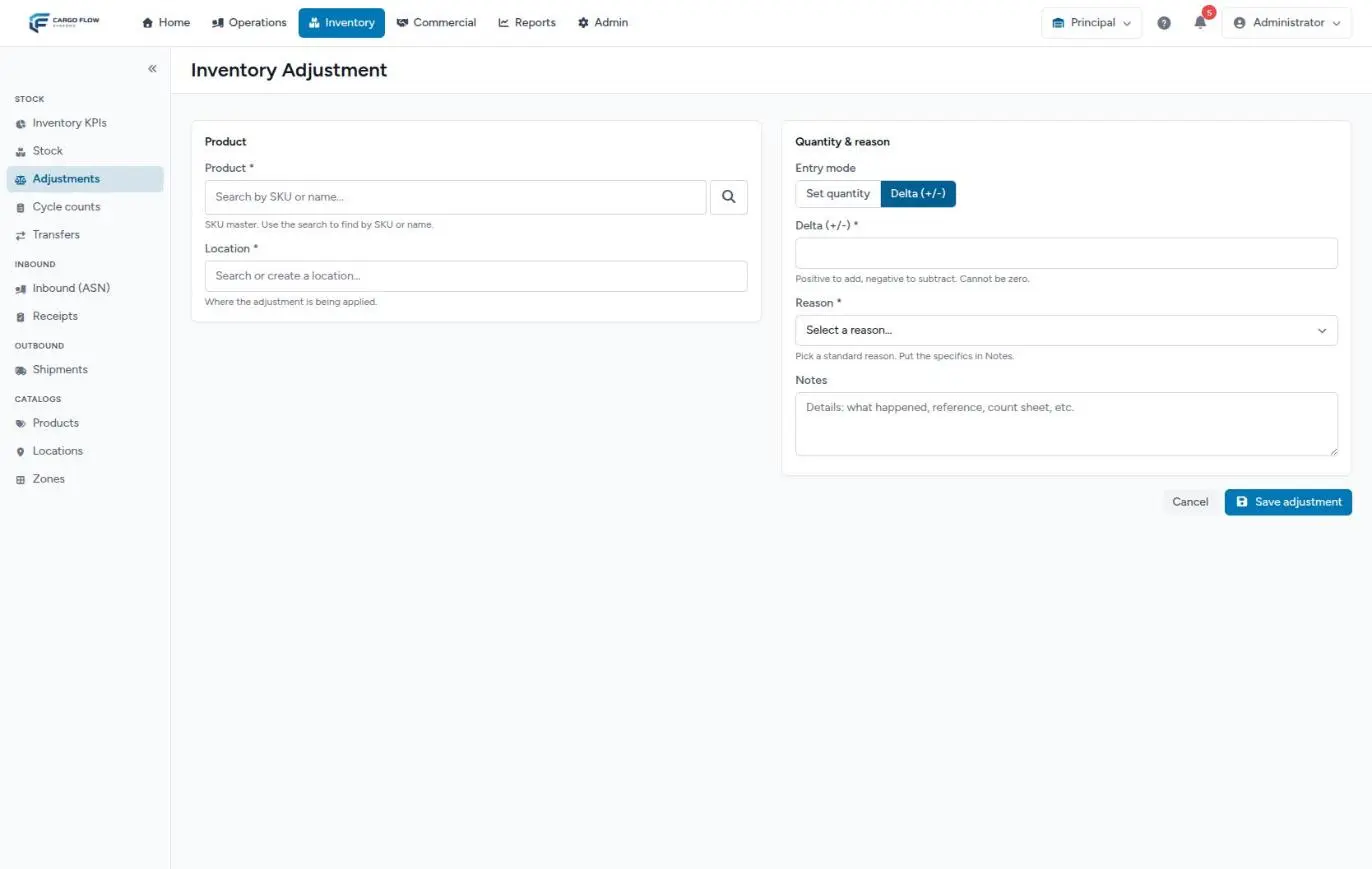
- Open the form — from Inventory Adjustment, or better from the line’s pencil in Stock: it arrives filled in with the product, location, lot and current quantity.
- Product (required) — search by SKU or name. Only active products appear. If it does not exist, the search allows a quick add.
- Location (required) — where the adjustment applies. Only active locations appear; if it does not exist, the search offers to create it.
- Entry mode — Set quantity or Delta (+/-) (see below).
- New quantity or Delta (required) — depending on the mode. Up to four decimals.
- Reason (required) — pick one from the list.
- Notes — the details: what happened, reference, count sheet. Up to 500 characters. Required with the reason Other.
- Save adjustment — you return to the adjustments history with a confirmation message. Cancel leaves without saving.
Set quantity or delta
- Set quantity — you type how much there should be (zero or more) and the system works out the difference. It shows the current quantity and the resulting change before you save. The form opens in this mode from a line.
- Delta (+/-) — you type how much to add (positive) or remove (negative). It cannot be zero. The form opens in this mode when blank.
In set quantity mode, the current quantity is read again on save: if someone moved the line while you had the form open, the adjustment leaves the quantity at the number you typed.
Reasons
The reason comes from a closed list, so reports stay consistent:
| Reason | When to use it |
|---|---|
| Cycle Count | A manual count outside a plan found a difference. (Approved plans already use this reason on their own.) |
| Damaged | Goods destroyed because of damage and written off. |
| Found | Goods turned up that the system did not have. |
| Lost | Goods are missing and were not found. |
| Expired | Expired goods that were destroyed. |
| Adjustment | Administrative correction (data entry error). |
| Other | Anything else; notes are required and hold the reason. |
What happens next
- Stock: the line quantity changes immediately. If the line did not exist (a positive adjustment in a new place), it is created under the last customer that had that product in that location or, if none, the product’s customer.
- Log: an Adjustment movement is recorded with before, after, reason, notes and user, visible in the adjustments history and in the line history.
- Capacity: a positive adjustment that exceeds the location’s capacity leaves a notice, but is saved.
- Client portal: the customer sees the new quantity in their inventory right away, and in the daily inventory email if they get it (see Customer emails and reports).
- Billing: the adjustment does not create a charge by itself, but storage on the following nights counts the new quantity. A new line created by an adjustment starts its age that day.
- KPIs: it can change the low stock KPI and the dashboard’s top moving SKUs.
- Nobody is notified: the adjustment sends no email or notification. If it affects a customer, tell them yourself.
Example: shrinkage found on a walk-through
On a walk-through, Luis Pérez finds 3 crushed, empty cases of Valley Distributors’ SKU VD-DET-3L in C-04-2-1. The line says 48 pieces.
- In Stock he filters by the SKU and opens the line’s pencil: the form arrives in Set quantity with 48.
- He types 45. The form shows the change: −3.
- Reason Damaged; notes: “3 pieces crushed and spilled in C-04-2-1, photos in ticket 1187, destroyed”.
- He saves. The line is at 45, the history shows Adjustment 3 (before 48, after 45) signed by Luis, and the customer sees 45 in their portal.
Adjustments history
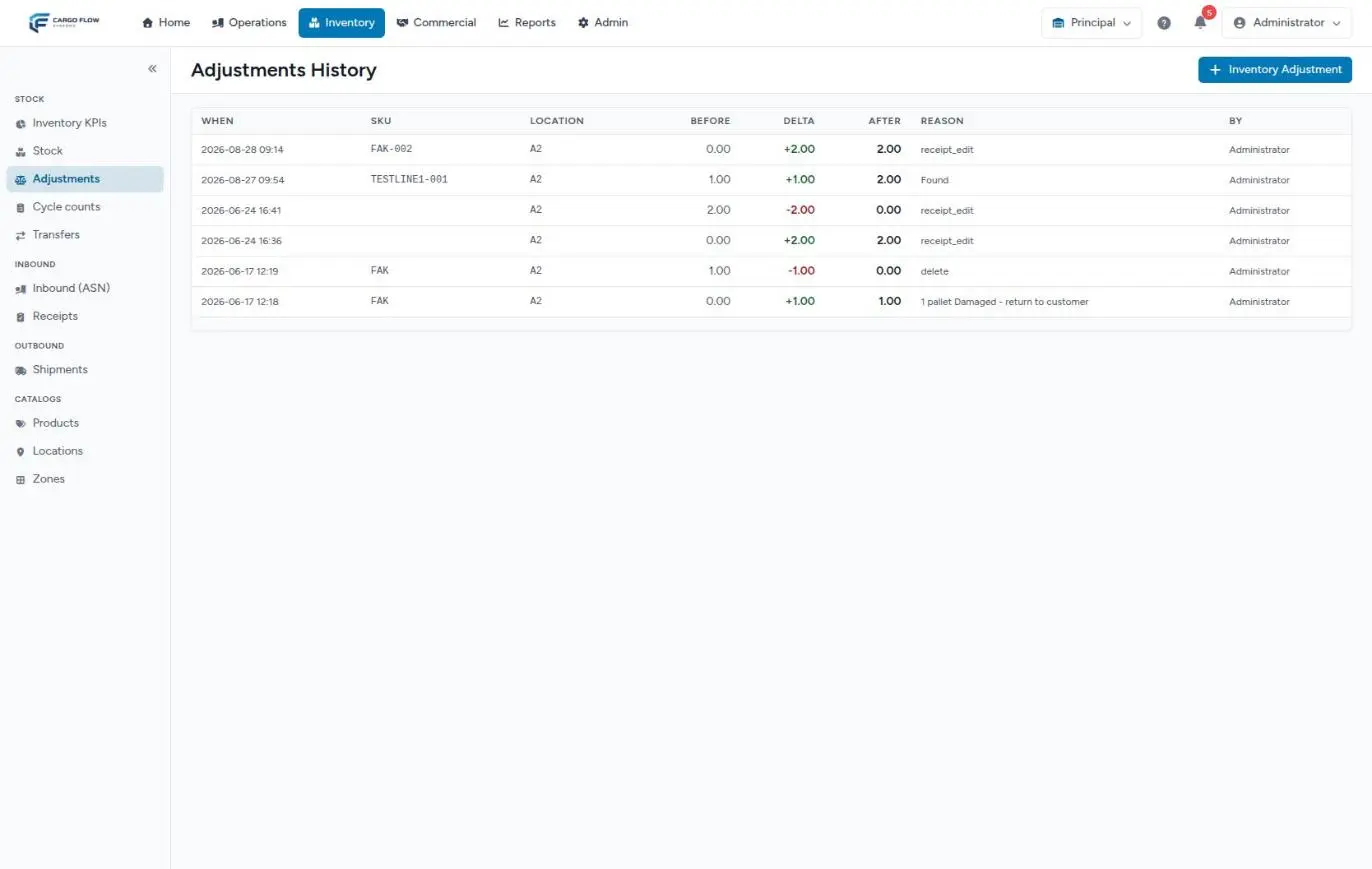
The list shows 30 adjustments per page, newest first: When, SKU, Location, Before, Delta (green when it added, red when it removed), After, Reason and By. Besides manual adjustments it includes the ones the system makes on its own: when editing or cancelling an already confirmed receipt, when changing a receipt’s customer or when approving a cycle count. It has no filters or export. Notes are saved with the movement, but today no list shows them: keep the evidence in your own records too.
Special cases and limits
- You cannot go below what is committed: the final quantity cannot drop below the line’s reserved plus blocked quantity.
- No negative quantities: an adjustment that would take the line below zero is rejected.
- One line at a time: there is no bulk adjustment. For many lines, use a zone cycle count.
- Inactive locations: they do not appear in the form. To correct goods in one, reactivate it briefly or transfer the goods.
- Lot: the blank form has no lot field; it adjusts the line without a lot. For a specific lot, go through its line’s pencil.
Best practices
- Adjust from the line’s pencil: it avoids getting the location or lot wrong.
- Write specific, verifiable notes (“crushed case in A-12-3, photo in ticket 482”), not just “adjustment”.
- Use transfers for re-slotting and status changes for damaged goods: a misused adjustment makes the customer see goods that “vanished”.
- Review the adjustments history every week; many adjustments to the same product or location point to a process problem.
- Tell the customer about any negative adjustment to their goods before they see it in their portal.
Troubleshooting
“Quantity can’t go below the committed amount (reserved/holds): N.”
- The line has N units reserved or in blocked states, and the adjustment would take it below that. Release the shipment’s reservation or return those goods to available with a status change, then adjust again.
- If N is 0, you are trying to take the line negative: check the delta’s sign.
“New quantity equals the current quantity — nothing to adjust.”
- In set quantity mode you typed the number that is already there.
“Describe the reason — required when "Other" is selected.”
- With Other, notes are required. Describe the reason.
“The selected lot belongs to a different product.”
- You opened the adjustment from a line with a lot and changed the product. Go back to the original product or open the form blank.
A message starting with Adjustment would make stock negative.
- Between opening the form and saving, the line went down (for example, a shipment closed). Reload and enter it again.
I do not see the Inventory Adjustment button.
- You are missing the Adjust Inventory permission.
Frequently asked questions
Can I adjust goods that are reserved?
You can adjust the line as long as the final quantity does not drop below reserved plus blocked. To go below that, first release the reservation on the shipment or return the blocked goods to available.
How do I undo a wrong adjustment?
Adjustments are not deleted: record another adjustment in the opposite direction with a note referring to the first. That keeps the log complete.
Why are there technical reasons in the history?
Adjustments created by the system (for example, when correcting a receipt) store an internal code as the reason, and today it is shown as is. The code table is in Stock line history. Manual adjustments show the name of the chosen reason.
Does an adjustment create a charge?
Not directly. If disposal or recounting is a service you bill, record it as an accessorial (see Capturing an accessorial).
Need help?
If something did not work as expected, our support team can help you.
Was this article helpful?