The bell and live alerts
Summary
The bell is the icon at the top right, next to your name. That is where staff alerts land: new receipts, new shipments, captured receipts waiting for review, overdue receipts, visitor arrivals and a few alerts the system checks by itself every day. The little red number counts the ones you have not read.
Which events alert and which roles get them is set per warehouse in Warehouse notifications and email. This article explains how the bell behaves for the person receiving it.
Before you start
- Every staff user has a bell; no permission is needed to see it or to mark its entries as read.
- To receive receipt and shipment alerts you need, in the warehouse, one of the roles ticked in the alerts panel (Worker, Supervisor or Admin), and the warehouse needs the receiving module.
- Visit alerts need the visits module.
- Client portal users do not have a bell.
What the bell looks like
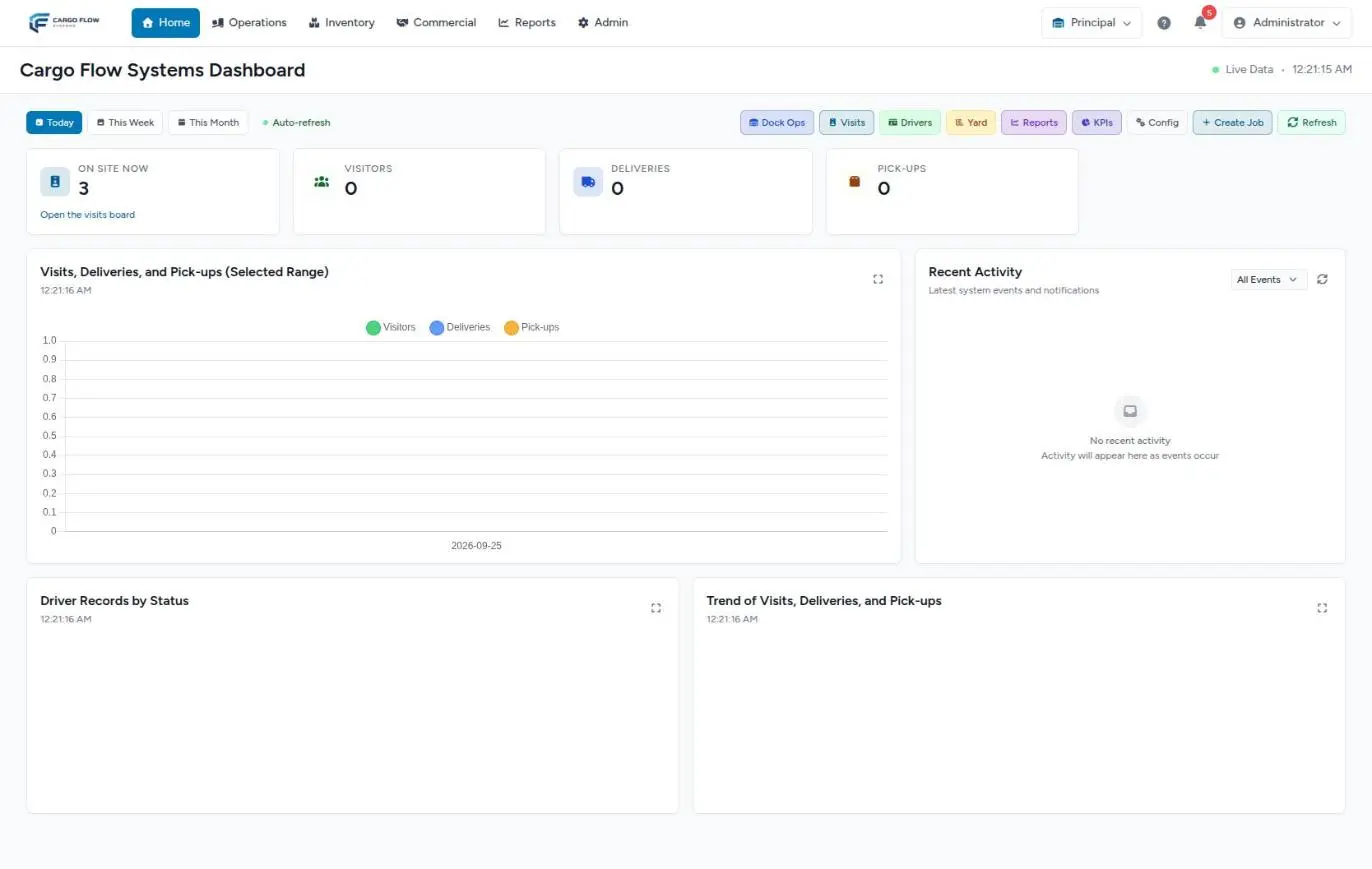
- The counter shows how many unread alerts you have. Above 99 it reads «99+».
- Clicking it opens the list, titled Notifications. It shows the 20 most recent unread alerts, each with an icon, a title (for example a new receipt with its number), a line with the customer or the detail, and how long ago it arrived.
- When there is nothing, it says «No new notifications.»
- Mark all as read appears at the top of the list when something is pending.
- The list closes with the X, the Escape key or a click outside it.
The icons help tell them apart: a truck for new receipts and shipments, a clipboard with a check mark for a captured receipt, a warning triangle for an overdue receipt, a person with a check mark for a visitor arrival and a door for their departure.
Stored and live: two paths
An alert can reach you in two ways, and the warehouse alerts panel controls them separately with its two channel boxes:
| Channel | What it does | If you turn it off |
|---|---|---|
| In-app (bell icon) | Stores the alert. You see it in the bell when you sign in or reload, even if you were not online when it happened. | Nothing is stored: if your screen was not open, you never find out. |
| Live (lightning icon) | The alert appears in your bell instantly, without reloading, while you have the system open. | You only see it after reloading the page or moving to another screen. |
The usual setup is both on: live to react quickly and stored so nothing is lost.
Which alerts appear, and for whom
| Alert | When | Who | Opening it takes you to |
|---|---|---|---|
| New receipt | A receipt is created: by hand, walk-in, or from an advance ship notice sent through the portal, the API or EDI. | The ticked roles, in the receipt’s warehouse. | The receipt. |
| New shipment | A shipment is created, including one the customer requests from the portal. | The ticked roles. | The shipment. |
| Receipt ready for review | An operator finishes capturing a receipt. | Only Supervisor and Admin (among the ticked ones). Never the worker, who cannot confirm. | The receipt. If it has discrepancies, the alert shows as a warning. |
| Overdue receipt | A receipt has spent more minutes than allowed in its status. | The ticked roles. | The receipt; the detail says how many hours it has been stuck. |
| Visitor arrived / left | The arrival or departure is recorded. | Reception and the host (see below). | The visit. |
| Lots nearing expiry | Daily check at 4:00. | All active staff of the warehouse. | (see limitations) |
| Late shipments | Daily check at 5:00. | All active staff of the warehouse. | (see limitations) |
«Ticked roles» means those under «Recipient roles» in the alerts panel, and what counts is the role the person holds in that warehouse: someone can be Admin in one warehouse and Worker in another. Only users active in the warehouse are included.
How a receipt is judged overdue
- The system checks the receipts in Pending, In progress and Captured every 15 minutes.
- Time is measured from the receipt’s last change, not from when it entered the status. If someone edits the receipt, the clock starts again.
- It alerts once per episode: if the receipt stays stuck, it does not ring again every 15 minutes. If it changes status and gets stuck again in the new one, it alerts again.
- The minutes for each status are set in the panel’s thresholds (240, 120 and 60 minutes unless someone changed them).
Example: with the Pending threshold at 240 minutes, a receipt created at 8:00 that nobody touches shows as overdue in the 12:00 or 12:15 check, and does not alert again while it stays that way.
Visitor arrivals
- Reception (the roles picked in the visitor settings) sees every visitor arrival of the warehouse live.
- Anyone else only sees, live, the arrivals of visits where they are the host, and the departures of their own visitors.
- Drivers and internal moves do not create this alert: only visitors do.
- The host also gets stored alerts when their visitor confirms or declines the invitation, if the bell is turned on in their host record.
Who counts as reception and what each host gets is set in Visitor settings.
Opening and marking as read
- Click an alert. It is marked as read and takes you to the receipt, shipment or visit. The counter drops by one.
- Or click «Mark all as read». The list empties and the counter goes to zero.
The counter only drops once the system confirms it saved the change. If the connection drops at that moment, the alert stays unread: better that than a number that lies.
Reading an alert changes nothing on the receipt or shipment: it only removes it from your list. Everyone marks their own alerts; Ana reading one does not remove it from Luis’s bell.
If you work in several warehouses
- Stored alerts from all your warehouses end up in the same bell. The customer line helps you tell where each one comes from.
- Live alerts only arrive from the warehouse picked in the selector at the top. If you switch warehouses, you start listening to the new one.
- Before opening an alert from another warehouse, switch to that warehouse in the selector so the document opens in its context. See Change language and warehouse.
Example
The Principal warehouse has Supervisor and Admin ticked and both channels on. Ana López is a supervisor; Luis Pérez is a worker.
- At 9:10 Valley Distributors sends an advance ship notice from its portal. Ana instantly sees a new receipt R-000245 for Valley Distributors. Luis does not get it, because Worker is not ticked.
- At 11:30 Luis finishes the capture with a shortage. Ana gets «receipt R-000245 ready for review, by Luis Pérez», flagged as a warning.
- Ana goes to lunch and leaves it pending. With the Captured threshold at 60 minutes, the 12:45 check sends her «receipt R-000245 overdue», with the hours it has been stuck.
- Ana opens the alert, reviews and confirms. Her bell counter drops.
Known limitations
Best practices
- Keep both channels on: live to react, stored so nothing is lost.
- Mark as read what you have handled: a bell with 80 pending entries stops being useful.
- Do not tick Worker for every event in a large warehouse: workers would get every new receipt even when it is not theirs.
- If the overdue alert fires all day, raise the thresholds to what your operation really takes.
Troubleshooting
The alert only appears when I reload the page.
- The live channel is off in the warehouse panel, or you have another warehouse picked in the selector. It can also be a network that blocks live updates (corporate network); reloading still works.
A colleague gets it and I do not.
- Check your role in this warehouse in Admin › Users & access. If it is «ready for review», only supervisors and admins get it.
The counter does not drop when I click an alert.
- The change could not be saved (connection). Try again; if it persists, use «Mark all as read».
There is a blank alert that leads nowhere.
- It is a lots-nearing-expiry or late-shipments alert (see limitations). Mark it as read after checking the inventory or shipments.
I do not get overdue receipt alerts.
- Check that «Receipt overdue» is ticked and that the thresholds are not too high. Remember it alerts once per episode.
Frequently asked questions
Can I delete an alert?
They are not deleted: they are marked as read and leave the bell list, which only shows unread ones.
Does the bell make a sound?
No. A live alert appears in the list and bumps the counter; it helps to keep the system on screen at reception and in the supervisors’ office.
Does the customer have a bell in the portal?
No. The portal has no bell; customers get emails. See The client portal.
Need help?
If something did not work as expected, our support team can help you.
Was this article helpful?