The internal copy of sent invoices
Summary
When someone emails an invoice to a customer, the internal copy sends your team the same email as a separate message. It gives accounting a record of what went out without asking people to cc them every time, and without the customer seeing internal addresses.
It is set up per warehouse in Admin › Configuration › Notifications & email, Internal invoice copy panel. Sending invoices to the customer is covered in Send and print invoices, and who at the customer receives them in Emails and reports to the customer.
Before you start
- Module: the warehouse needs the billing module; without it the panel does not appear.
- Permission: Manage Billing (Admin, Accounting and the super administrator have it) or Configure Users.
- Users: if you send the copy by role, the people must be set up in this warehouse with that role and have an email. See Managing users.
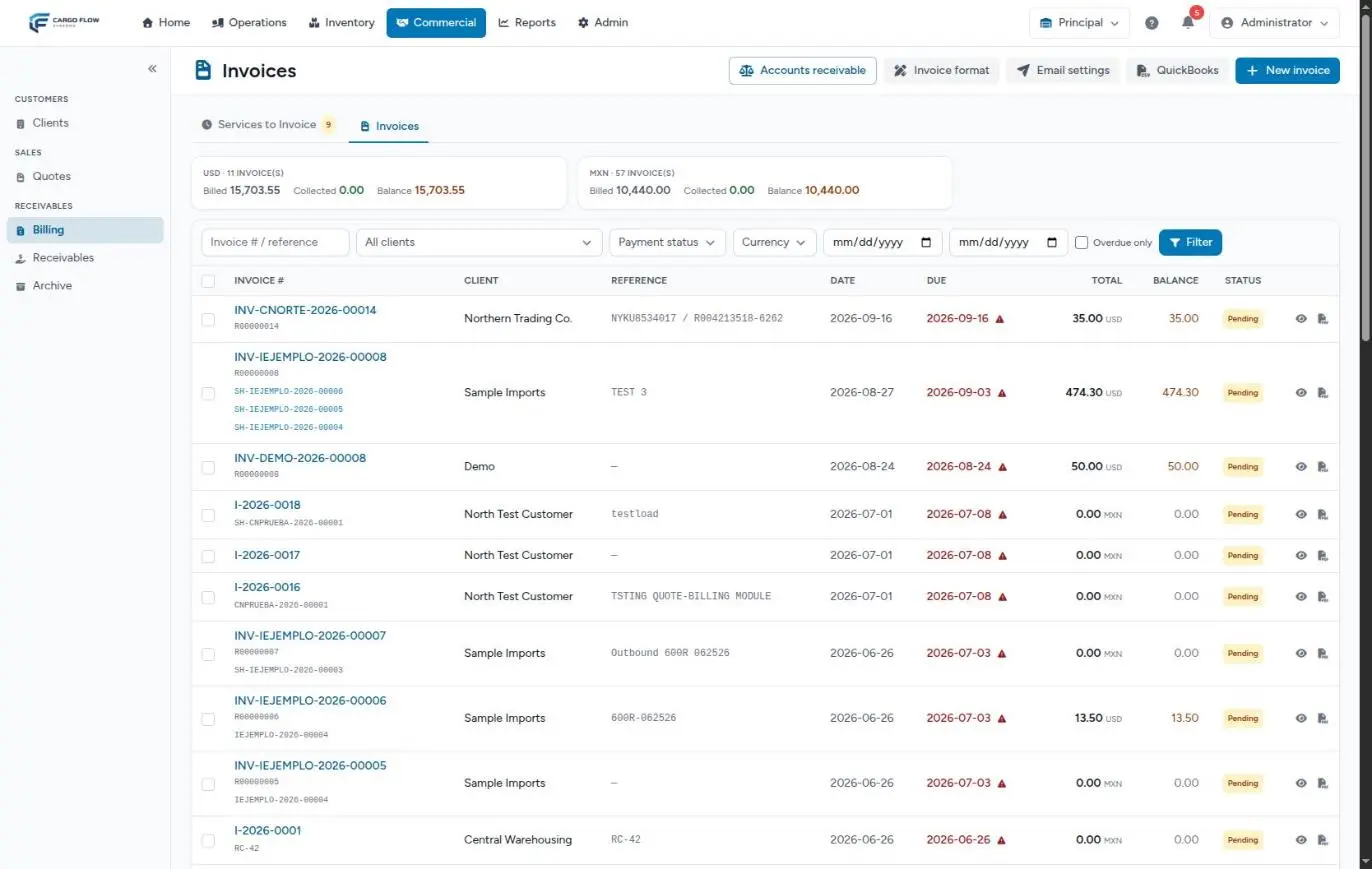
The shortcut is under Commercial › Billing, Email settings button.
Set up the panel step by step
- Pick the warehouse in the selector at the top. The copy is per warehouse.
- Turn on «Send an internal copy to accounting».
- Tick the roles that get the copy.
- Add additional addresses if needed.
- Check «Recipients right now».
- Click «Save». The message «Internal invoice copy updated.» appears.
The roles
Three are offered: Accounting, Admin and Supervisor. The copy goes to the active users of this warehouse who hold one of those roles and have an email on file. Accounting counts even as a general role of the person; Admin and Supervisor count by the role the person holds in this warehouse.
If the warehouse never saved this panel, the copy, once turned on, goes to the Accounting role.
The additional addresses
Up to 10 emails that are not system users: an outside accounting firm, a shared mailbox such as user@example.com, the company’s digital archive. Each one gets the full copy. An empty field is ignored; a mistyped address is rejected when you save.
Recipients right now
This is the real list of who would get the copy today, worked out the same way as the send. If it says «Nobody would receive the copy: no user in this warehouse holds the selected roles, and there are no additional addresses.», the switch can be on and still nothing will go out.
When the copy goes out
The copy never goes out on its own: it rides along with a real send to the customer.
- Someone selects one or more invoices and chooses to send them by email.
- The send window shows who gets each invoice and, at the bottom, the Internal copy to accounting section with its recipients, or «No internal copy configured.»
- On confirming, for every email that goes to the customer, a copy goes to your team too.
- With One email per invoice, one copy goes out per invoice.
- With One email per client, all their invoices together, one copy goes out per customer with the same invoices together.
- If an invoice cannot be sent to the customer (no contact with an email, invoice emails or the email channel turned off, voided invoice, or no customer), its copy does not go out either.
Sends are queued, so they can take a few minutes. Each one lands in the invoice’s Email history, labelled Client or Internal copy, with date, recipients, who sent it and whether it failed.
What the copy looks like
- Subject: «[Copy] Invoice I-2026-0018 — Northern Trading Co.». In a grouped send: «[Copy] Northern Trading Co. Invoices (3)».
- Body: the same email the customer got, with the «Internal copy» badge and the note «This is the same email sent to … It is a copy for your records — the client already received it.»
- Attachments: the same invoice PDF with its supporting documents.
- Language: the customer’s (the one picked on their Notifications tab), because it is a copy of the email they got.
The customer never sees these addresses: the copy is a separate email, not a blind copy.
Example
The Principal warehouse has two users with the Accounting role (Ana López and Luis Pérez) and the outside firm uses user@example.com.
- Carlos Ruiz turns the copy on, ticks only Accounting and adds user@example.com. «Recipients right now» lists three addresses.
- On Friday, Ana selects 4 invoices: 3 for Northern Trading Co. and 1 for Central Warehousing, and picks «One email per client».
- Central Warehousing has «Allow sending invoices by email» turned off: the window marks it «Will not be sent».
- On confirming, 1 email goes to Northern Trading Co. with its 3 invoices and 1 copy to the three internal addresses. The Central Warehousing invoice is not sent and makes no copy.
Special cases
- A single invoice in grouped mode goes out as an individual email (with the document number in the subject), and so does its copy.
- Several warehouses: the copy follows the settings of the warehouse you are in when you send. If accounting is the same for all, set each warehouse up the same way.
- A person who is a user and also listed as an additional address gets only one copy.
- If the send to the customer fails, the copy is sent separately and may still go out; check the invoice’s email history to see what failed.
Best practices
- Prefer the Accounting role and a shared mailbox over ticking Admin: admins rarely need every invoice.
- Check «Recipients right now» after adding or removing someone in accounting.
- Use the invoice’s email history to confirm what went out, instead of searching your inbox.
- Set up the copy the same day you start billing in a new warehouse.
Troubleshooting
Accounting does not get the copy.
- Is the switch on in the invoice’s warehouse?
- Does the person appear under «Recipients right now»? If not, they lack the role in this warehouse, are inactive or have no email.
- Did the invoice actually go to the customer? Check its email history.
- Did they check their spam folder?
I cannot see the copy panel.
- The warehouse has no billing module, or you have neither Manage Billing nor Configure Users.
An address is rejected on save.
- It must be a valid email, and there can be no more than 10.
Admins get copies they never asked for.
- Someone ticked Admin. Untick it and save; if nobody should get it, turn the switch off.
Frequently asked questions
Does the customer see that we send a copy?
No. The copy is a separate email; the customer’s email carries neither a visible nor a blind copy.
Why can I not pick Worker?
It was left out on purpose: invoices carry amounts and terms that floor staff do not need.
Can I get the copy of an old invoice?
The copy only goes out along with a send to the customer. To keep an old invoice, download its PDF from the invoice. See Send and print invoices.
Need help?
If something did not work as expected, our support team can help you.
Was this article helpful?