Tracking and closing a cross-dock
Overview
Each cross-dock has its own screen that brings both legs together: the inbound receipt, the outbound shipment, the worker’s job, the inventory movements, the photos, the charges and the audit trail. It shows which step it is on and what is left to close it. In warehouses with receiving and shipping, a cross-dock finishes when a supervisor confirms the receipt and closes the shipment.
Before you start
- Seeing the list and the screen needs View Crossdock (default: Admin, Supervisor and Worker) or Create Crossdock Jobs.
- Confirming the receipt needs access to the receipts screen and Confirm Receipts (Admin and Supervisor). See Capture and review.
- Closing the shipment needs access to shipments and Ship (Close Shipments) (Admin and Supervisor).
The cross-dock list
Go to Operations, In Progress group, Crossdock.
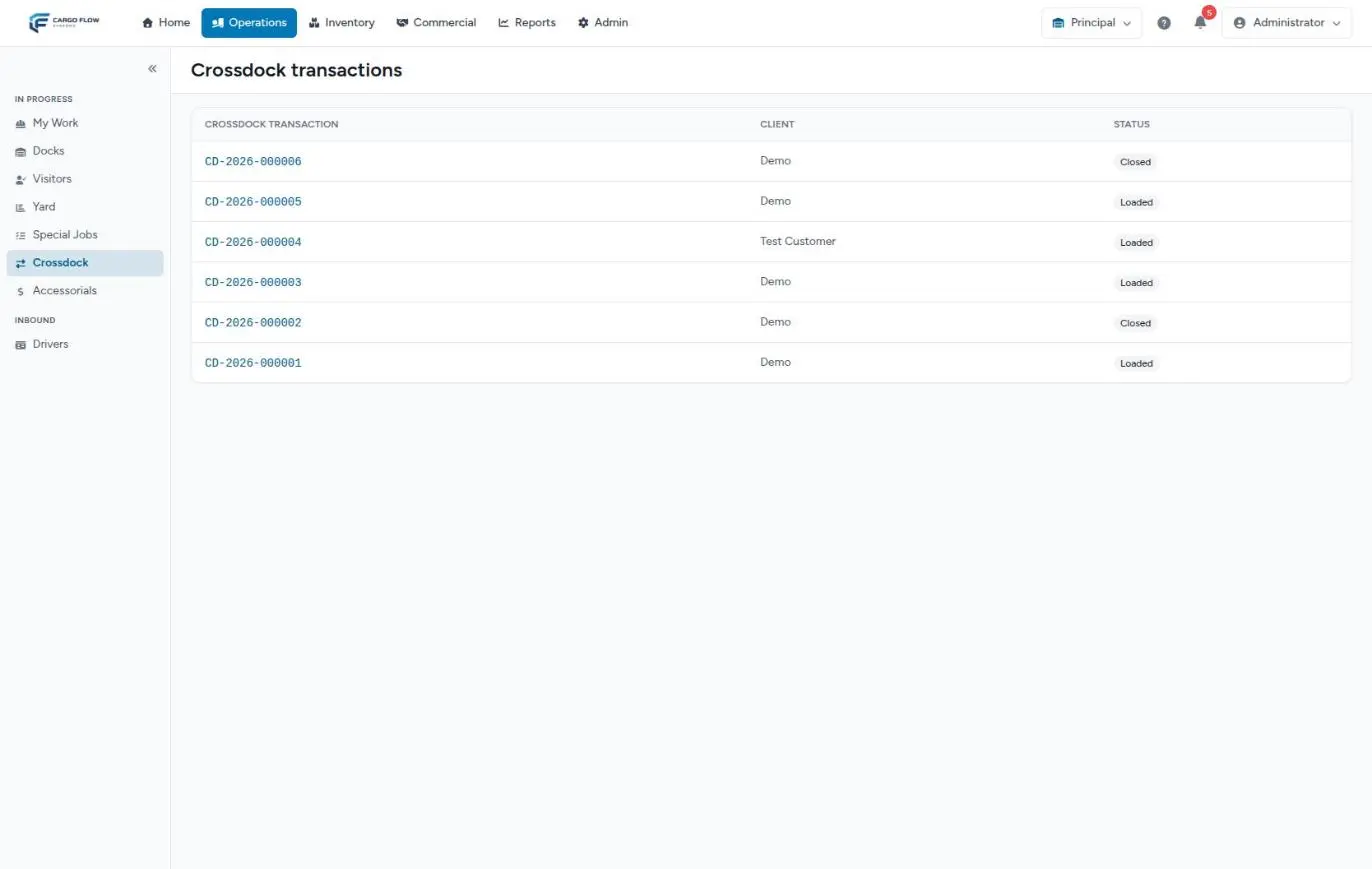
Each row shows the number, the customer and the status, which is the same step you see when opening it (or Cancelled). Click the number to open it. Newest first, 20 per page. It has no search or filters, and no create button: cross-docks are created from the dock board. See Requirements to create a cross-dock.
The seven steps
At the top of the screen is a seven-step timeline. The system works the steps out from the receipt, the shipment and the worker’s job, and shows the furthest step reached.
| Step | When it is marked | What’s left |
|---|---|---|
| Created | The cross-dock exists, but the worker hasn’t started. | The worker starts. |
| Receiving | The worker started the job. | Capture and load. |
| Received | A supervisor confirmed the receipt: the freight entered XD-STAGE. | Record the loading and close the shipment. |
| Loading | Quantities are already recorded as loaded. | The worker finishes. |
| Loaded | The worker finished the job. | Confirm the receipt and close the shipment. |
| Completed | The shipment was closed, but the receipt isn’t confirmed. Rare. | Check the receipt. |
| Closed | Receipt confirmed and shipment closed. | Nothing. |
The cross-dock screen
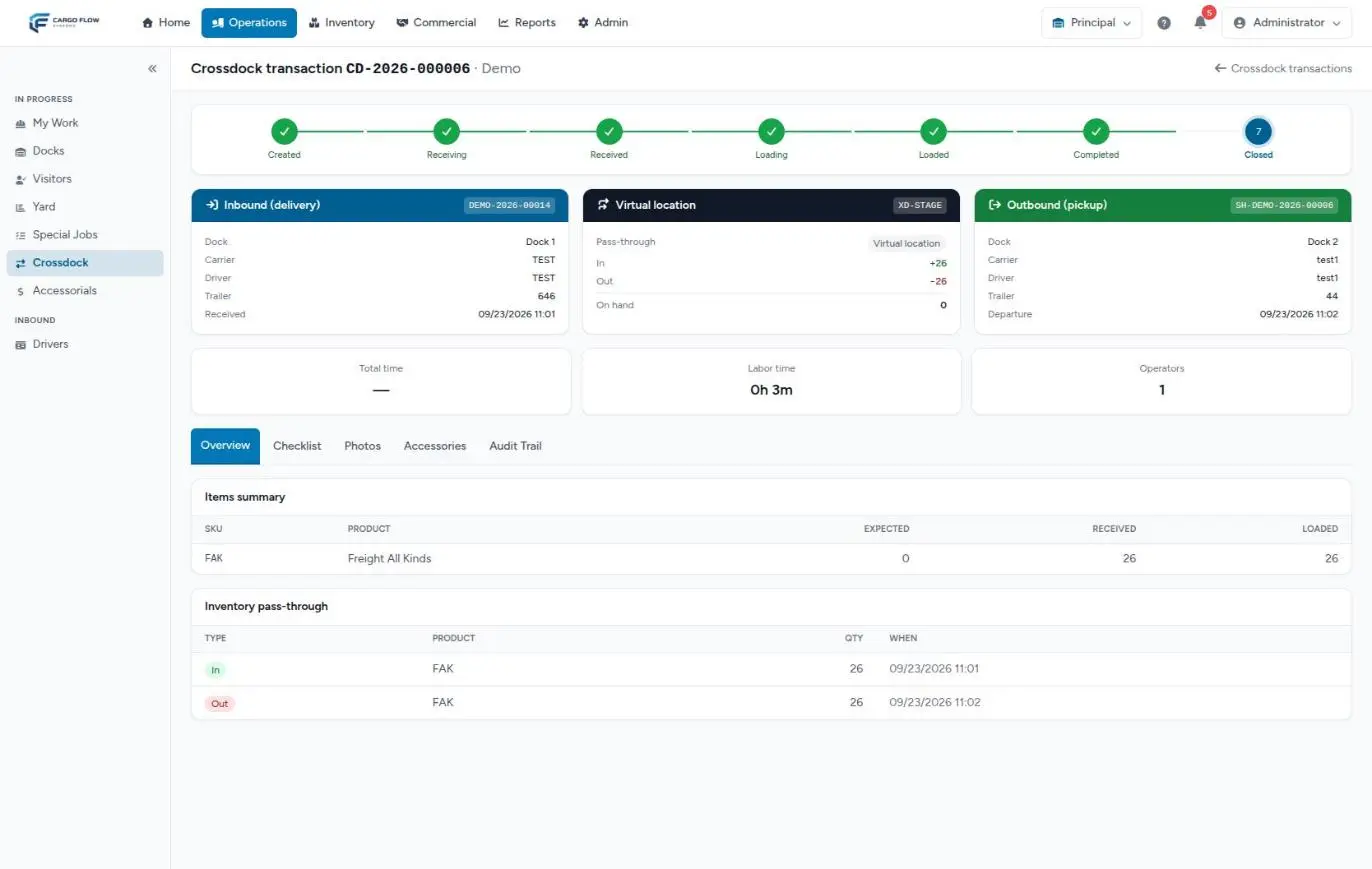
Under the timeline there are three cards:
- Inbound (delivery) (blue): receipt number, dock, carrier, driver, trailer, seal, arrival time and when the receipt was confirmed.
- Virtual location: XD-STAGE with what went in, what went out and what is on hand. When finished it should read zero; if not, the number is highlighted.
- Outbound (pickup) (green): shipment number, dock, carrier, driver, trailer, seal and departure time, for the outbound truck.
Then three indicators:
- Total time: from the truck’s arrival to the end of the job. Shows a dash if either time is missing.
- Labor time: from job start to job finish.
- Operators: how many different people took part (the job’s, the original jobs’ and whoever recorded movements).
What’s left to close it
While something is missing, one of these appears above the cards:
- Confirm receipt and Close shipment buttons: they take you to the receipt or shipment screen to do that step. They only show if the warehouse has that module and your user can open that screen.
- A blue notice saying the cross-dock closes on its own when the worker finishes: in warehouses without receiving or shipping. See Cross-dock without receiving or shipping.
- A padlock notice: a step is missing, but your user can’t open that screen. Ask a supervisor.
Confirm the receipt
- Click Confirm receipt. The cross-dock receipt opens.
- Check the worker’s capture (quantities, XD-STAGE location, lots if the product uses them) and send it to review like any receipt.
- Confirm the receipt. The freight enters XD-STAGE.
At that moment the system fills and reserves the shipment with what was actually received, line by line: if the shipment carried a plan, the ordered quantity is kept and what was received becomes reserved (the gap shows); if not, each received product becomes a line. The cross-dock moves to Received (or stays Loaded if the worker already finished). The receipt document is generated and the customer gets their receipt email, as with any receipt. See How receiving works.
Close the shipment
- Go back to the cross-dock and click Close shipment. The shipment opens.
- Check the picked column (what the worker recorded), the seal and the actual ship-out date.
- Click Close Shipment. The freight leaves XD-STAGE, handling is billed and the customer gets their email.
The cross-dock moves to Closed on its own, and if the job or the outbound driver were still open, they are closed with the shipment’s time. See Close a shipment.
The tabs
| Tab | What it shows |
|---|---|
| Overview | The Items summary (SKU, product, expected, received and loaded, highlighting differences between received and loaded) and the Inventory pass-through: each in and out with its quantity and time. |
| Checklist | The job’s checklist results. Empty on cross-docks, because the checklist doesn’t apply. |
| Photos | The worker’s photos, grouped as unload (to receipt), load (to shipment) and no phase. Click one to see it full size. Viewing them needs the documents module; without it you only see how many there are. |
| Accessories | The job’s accessorials panel (to add or fix) and the charges already created by the receipt, the shipment and the job, with quantity and amount. |
| Audit Trail | The log of the cross-dock, the receipt and the shipment: what changed, when and who. |
The cross-dock shipment
A cross-dock shipment shows in the shipments list like any other, but it is locked: it can’t be re-allocated, released, have its lines edited or be sent back to draft from the shipping module. Its reservation is managed by the cross-dock, against the freight that came in on its receipt; doing it from shipping would take another account’s floor stock. To redo it, cancel the cross-dock. See Cancel a cross-dock.
Example
At 10:00 Luis Pérez sees in the list that CD-2026-000014 says Loaded. He opens it: clicks Confirm receipt, checks the 26 received into XD-STAGE, sends it to review and confirms it. He goes back, clicks Close shipment and closes. The virtual location card reads +26, −26 and 0 on hand; the list says Closed.
Troubleshooting
The cross-dock is stuck at Loaded.
- The worker finished, but the receipt still needs confirming and the shipment closing. If you don’t see the buttons, you lack the permission: ask a supervisor.
When closing the shipment, a message asks you to confirm the cross-dock’s receipt first.
- Confirm the receipt and try again.
The receipt won’t confirm because a location is missing.
- The worker cleared XD-STAGE while capturing. Edit the receipt capture and set XD-STAGE.
XD-STAGE didn’t go back to zero.
- More went in than out: the shipment isn’t closed yet, or less was loaded than received. Check the items summary. Whatever stayed in XD-STAGE has to be moved to a real location with a transfer, or shipped with another shipment.
Empty tabs say “No movements recorded.”
- That’s the text the screen uses for any empty tab. It only means there’s nothing to show there.
Photos show as a count instead of images.
- The warehouse doesn’t have the documents module.
FAQ
Why do so many cross-docks say Loaded?
Because the worker finished and nobody has confirmed the receipt or closed the shipment. Until then inventory doesn’t reflect the cross-dock and nothing is billed.
Why did it go from Receiving to Loading without Received?
Because unloading and loading happen at the same time: as soon as the worker records loading, the step is already Loading. Received (the supervisor’s confirmation) may come later. It is a progress indicator, not a strict order.
What happens to freight received but not loaded?
It enters inventory in XD-STAGE and, when the shipment closes, its reservation is released, but it stays in XD-STAGE, which is non-pickable. Move it to a real location with a transfer so it can be stored or shipped later.
Need help?
If something did not work as expected, our support team can help you.
Was this article helpful?