Linking the job to its receipt or shipment
Summary
A dock job says who arrived, at which door and who handled it. A receipt or a shipment says which goods come in or go out. Linking them joins both: the truck data is copied to the document automatically, the document changes status when the operator starts working, the operator can record quantities from their app and, at the end, there is a report that puts together everything that happened at the dock.
Linking is optional and never stops the dock job: if something fails, the job keeps going and the link is made later.
Before you start
- Modules: Docks, plus Receiving to link receipts (deliveries) or Shipping to link shipments (pickups). Without the matching module the link box does not appear and everything works as before.
- Permissions: Write Docks to link from the dock board; Capture Receipts to create a new receipt; Create Shipments to create a new shipment. By default, Supervisor and Admin have the ones for their modules.
- Customer: the job needs a client to create a new document and to see that client’s documents.
- Job type: only Deliveries (with receipts) and Pickups (with shipments) can be linked. Internal, load and visit jobs cannot.
Which documents can be linked
| Job | Document | Statuses offered |
|---|---|---|
| Delivery | Receipts in the same warehouse | Pending or in progress, with no other job linked. |
| Pickup | Shipments in the same warehouse | Draft, confirmed, allocated (fully or partially) or loading, with no other job linked. |
At most the 10 best matches are shown. If you have not picked a client yet, only documents that match by reference or by trailer appear, so the list does not show every client’s documents.
How the system picks the Suggested one
The system compares what the driver entered at the kiosk against each document and scores every match. Under each document you see tags with the matches it found:
| Tag | What it compares |
|---|---|
| Reference match | Some driver field (pickup number, reference, order) equals or contains the document reference. This is the strongest signal. |
| Trailer match | The driver’s trailer number is the document’s. |
| Expected today/soon | The document’s expected date is today or a few days away. |
| Company match | The driver’s carrier is the document’s. |
| Ready to load | Shipments only: the goods are already allocated. |
A document with a strong match (for example, the exact reference) is marked Suggested and already checked. If none reaches that mark and you already picked a client, the system proposes creating a new one. For shipments you also see Reserved at: with the allocated locations and quantities, handy for choosing the closest dock.
Linking when assigning or creating the job
The Assign Driver window (see Assigning a driver from the bell) and Create Job (see How to create a dock job) show the documents box:
- Pick the client. The list refreshes with that client’s open documents.
- Check one or more documents, or check the option to create a new one: create a receipt (it stays pending with no lines; lines are captured at the dock) or Create shipment (it stays in draft with the driver’s data; a supervisor adds the lines later).
- Assign. The system asks you to confirm the client, because the new document’s number is generated under its identity.
If the link fails, the job is still created and you see Assigned, but the WMS link failed: followed by the reason.
Linking later, from the job
The Job Details window on the dock board shows Create receipt & link (deliveries) or Create shipment & link (pickups). Conditions:
- The job is Assigned or In Progress.
- It has a client (otherwise you see Assign the job client first: the document number is generated under its identity.). Pick the client, press Update Job and then create the document.
- You have permission to create that document.
- It does not already have an open linked document: if it does, the system does not create another one and tells you which it is.
This is the normal way to link jobs that come from the yard, which skip the assignment window. When you bring a job back from the yard with Move to dock management, linking is offered too.
Linking or unlinking from the document
Every receipt and shipment page has the dock job card:
- Not linked: it shows a list of the active jobs of the right type in the same warehouse and the Link button. If there are none, it says so.
- Linked: it shows the driver, the carrier, the trailer, the job status, the dock job notes and the operator notes, plus View full detail, the operator report (see The operator report) and Unlink, which asks for confirmation.
A shipment that has already shipped or a receipt that is already confirmed cannot be unlinked. Unlinking a shipment that was loading sends it back to its allocation status.
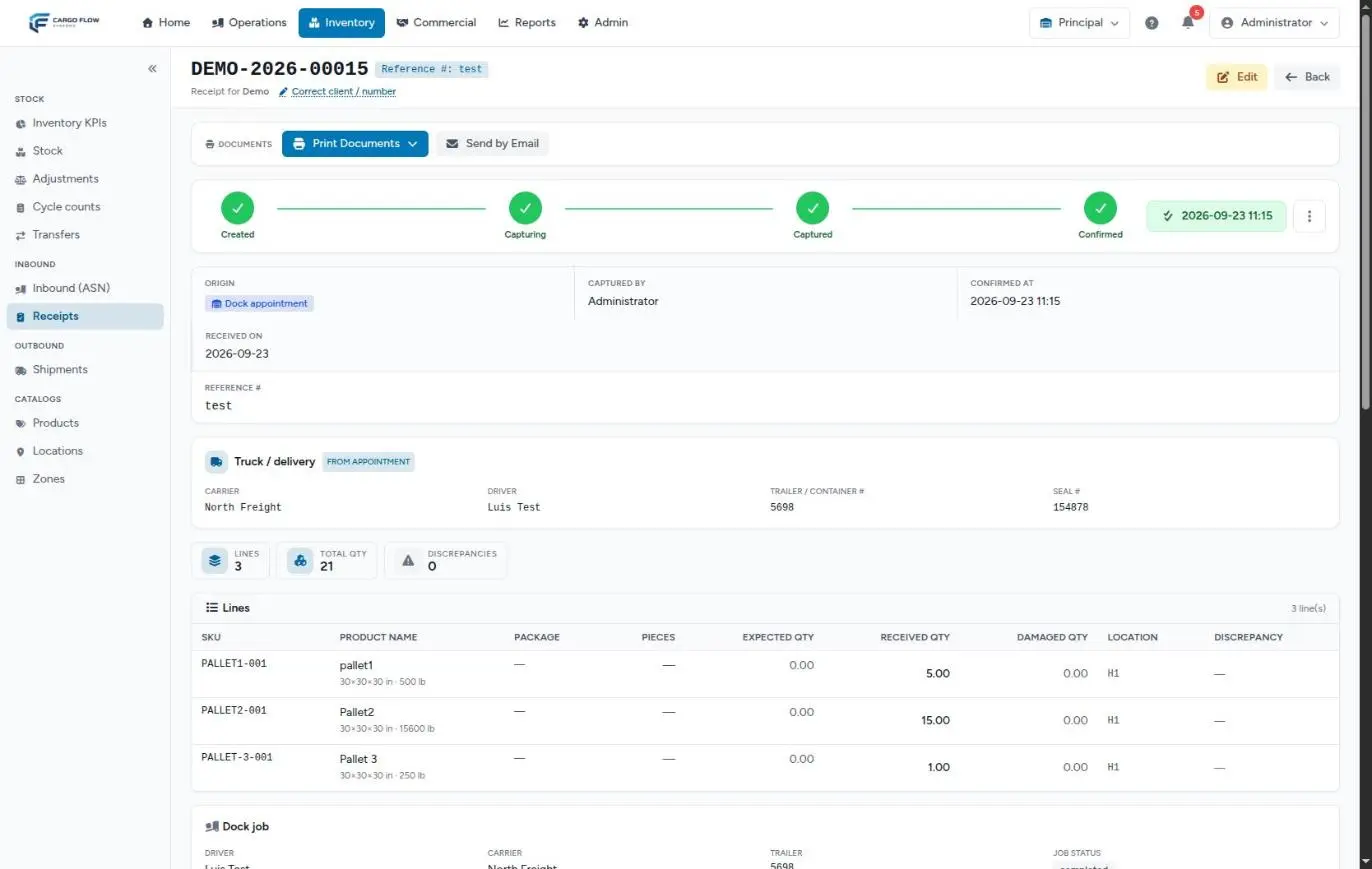
What data is copied
- Receipts: the header takes the carrier, driver name, trailer, truck, seal and pickup number from the driver, as long as the receipt does not already have that value. It also shows the in and out times, the operator and the dock.
- Shipments: the driver data (carrier, name, truck, trailer, plates, pickup number and seal) is copied to the shipment fields that are empty. Whatever the shipment already had is not overwritten.
- Corrections: if you fix a driver field in the job details, the linked document shows the corrected value in the fields it takes from the driver.
How statuses move
| At the dock | Linked receipt | Linked shipment |
|---|---|---|
| Job is assigned | No change. | No change. |
| Operator starts | Pending → in progress. | If confirmed, the system tries to allocate it (even partially); allocated → loading. |
| Operator saves quantities | Received quantity and location are filled in; still in progress. | Loaded quantity and seal are filled in. |
| Job finished and released | No change: the supervisor reviews and confirms in Receiving. | No change: the supervisor ships it in Shipping. |
| Job cancelled | In progress → pending (captured or confirmed ones are not touched). | Loading → its allocation status. |
Stock only moves when the supervisor confirms the receipt or closes the shipment. See From notice to stock and From order to departure.
Example
Valley Distributors has shipment EMB-00417 allocated, with pickup number PU-5510. Carlos Ruiz registers at the kiosk for a pickup and enters PU-5510. When he is assigned with the client Valley Distributors, the shipment shows as Suggested with the tags Reference match and Ready to load, and Reserved at: B-02-01 · 24. The supervisor leaves it checked and assigns dock 5, the closest to that location. When Luis Pérez starts, the shipment goes to loading; Luis records 24 pieces and seal 889201; when closing the shipment, the supervisor finds the seal and quantity already filled in.
Special cases and limits
- Several documents on one truck: you can link several receipts or several shipments to the same job. The items the operator records in their app only flow into the receipt automatically when one receipt is linked.
- Consolidated shipments: a shipment that carries goods from several clients can be linked to a job of any of them.
- Changing the job client: the system asks Change the job client from … to …?, because the document identity and number follow the client.
- Cross-docks: their documents are created by the cross-dock itself; they are not linked by hand.
- No modules: if the warehouse has neither Receiving nor Shipping, there is nothing to link and the board works the same.
Error messages
| Message | What to do |
|---|---|
| … is already linked to another dock job. | Unlink it from the other job on the document page, or pick another document. |
| … is not open for receiving anymore. | The receipt was already captured, confirmed or cancelled. |
| … is not in a linkable status. | The shipment already left or is cancelled. |
| … belongs to a different client than the job. | Fix the job client or pick the right document. |
| The document belongs to another warehouse. | Switch warehouse; links only work within the same one. |
| Pick a client to create a new receiving. / Pick a client to create a new shipment. | Pick the client before asking for the new document. |
| This job already has an open linked document (…). Open it instead of creating another one. | Use the existing document. |
| No document was created or linked — the WMS module is off for this warehouse or you lack the permission to create it. | Ask for Capture Receipts or Create Shipments, or check the modules. |
| A shipped shipment cannot be unlinked. / A confirmed receipt cannot be unlinked. | The document is closed; correct it from Receiving or Shipping. |
Best practices
- Ask the client to enter the pickup number or reference on the notice or the shipment: that is what lets the system suggest the right document.
- Ask drivers to enter the trailer and pickup number correctly at the kiosk.
- Link before the operator starts: that way the document changes status and the operator sees the lines in their app.
- Do not create a new document if one already exists: check the client’s list before ticking the create option.
Troubleshooting
The document I’m looking for is not in the list.
- Check that it belongs to the same client, that it is open and that it is not linked to another job.
- Only the top 10 are shown; if the client has many, link it from the document page.
The receipt did not move to in progress.
- It changes when the operator starts, not when the job is assigned. Check that it is still linked.
The operator does not see the shipment lines in their app.
- The shipment has no lines yet (for example, it was created in draft at the dock). Add them in Shipping.
Frequently asked questions
Is linking required?
No. The dock job works the same without a document. But without a link the document does not change status on its own, the truck data is typed twice and there is no operator report for that document.
Can one truck carry several shipments?
Yes. Check them all in the assignment window or link them one by one from each shipment. All of them go to loading when the operator starts.
Need help?
If something did not work as expected, our support team can help you.
Was this article helpful?