Setting up the yard and its spots
Summary
Each yard is a layout with its parking spots and, optionally, reference elements such as entrances, roads or the guard house. What you draw here is exactly what the team sees on the yard board: the spots trailers can be sent to, their zones for filtering and their shape on the map.
Before you start
- Module: the warehouse must have the Yard module.
- Permission: Configure Yard. By default it comes with the Admin and Super Admin roles; Supervisor does not have it. See Roles and permissions.
- The warehouse set up. A yard belongs to a single warehouse.
- Your yard plan (recommended): an aerial photo or sketch to use as background, and the list of how spots are numbered on the ground.
Where it is set up
In Admin › Configuration, open Parking Areas. You can also get there with the Configure button on the yard board, which opens the active yard directly.
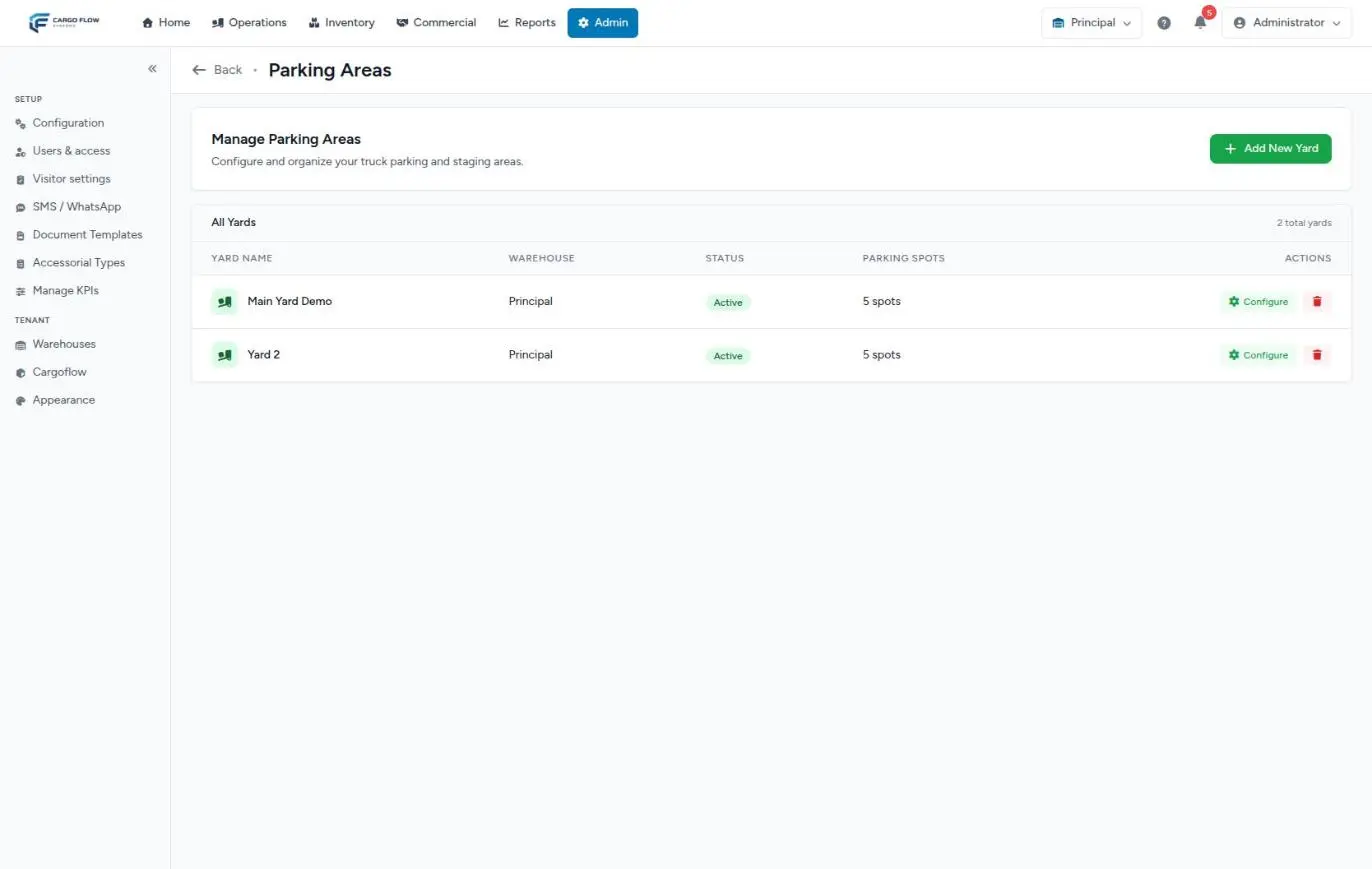
The Manage Parking Areas list shows each yard with its warehouse, status, number of spots and the Configure and delete buttons.
Creating a yard
- Press Add New Yard.
- Type the name (required, up to 255 characters), pick the warehouse (required) and leave the status as active.
- Save. You land straight in the yard editor to draw its spots.
When the warehouse’s first yard is created, the system also creates an internal yard-type dock. It queues drivers who check in to drop or pick up a trailer in the yard there. It does not show on the dock board or in assignment lists; do not delete it.
Yard settings
At the top of the editor is the collapsible Yard Settings section (identity, canvas size, dwell thresholds and background image):
| Field | What it does |
|---|---|
| Name and Status | Required. An inactive yard is not offered as a destination when sending trailers from the dock board. |
| Initial view | Map or List: which view the yard board opens with. A yard with many spots in a row is easier to work as a list. |
| Canvas width and Canvas height | In pixels, from 100 to 50,000. Blank keeps the previous value. |
| Dwell warning (min) and Dwell critical (min) | After how many minutes a trailer counts as staying too long (120 and 240 by default; 1 to 10,000). |
| Background image | An aerial photo or map (image up to 5 MB) to draw the spots on. Remove deletes it. |
Press Save settings. Next to it you see Current Statistics: total, available and occupied spots.
The layout editor
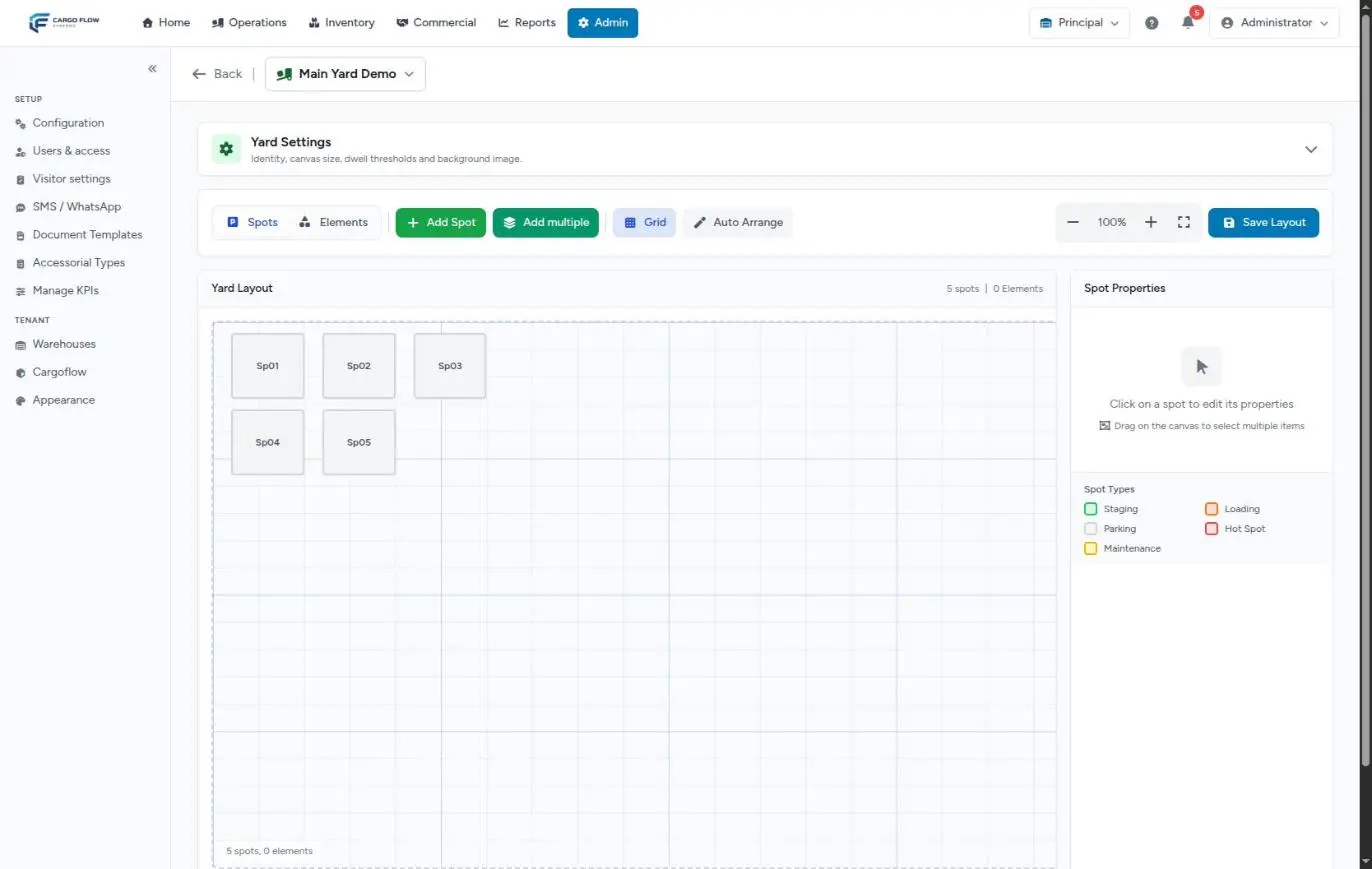
The header has Back and a selector with the yards of the same warehouse, to jump between them. Below are the Spots and Elements tabs and the bar with Add Spot, Add multiple, Grid (shows or hides the grid), Auto Arrange, the zoom (minus, percentage, plus and full screen) and Save Layout.
The Yard Layout canvas counts its spots and elements. On the right, Spot Properties reads Click on a spot to edit its properties until you pick one.
Adding spots
Press Add Spot. The Add New Spot window asks for:
- Spot ID — required: letters, numbers, hyphen and underscore, up to 16 characters, no spaces and unique in the yard (for example A1, B-02, 15).
- Spot Type — see below. If you don’t choose, it is Parking.
- Zone — free text up to 50 characters (for example "North" or "A"); used for filtering on the yard board and in Yard Inventory.
Then drag it into place on the layout. When you pick a spot, the properties panel lets you change its type, zone, Width and Height (1 to 50) and Rotation (0 to 360 degrees), or Delete Spot.
Spot types
| Type | What for |
|---|---|
| Parking | The normal one: any trailer. |
| Loading | Spots near the docks, for trailers about to be loaded. |
| Staging | Spots where freight or trailers are lined up before going to a dock. |
| Hot Spot | Spots reserved for urgent work. |
| Maintenance | Spots out of use or for units under repair. |
The type is informational: it changes the border color in the editor, but any available spot can be used as a destination. The system does not stop you from sending a trailer to a Maintenance spot.
Adding several at once
- Press Add multiple and click on the canvas where the row should start.
- How many? — 1 to 50.
- Prefix (optional) and Suffix (optional) — letters, numbers, hyphen or underscore, up to 12 characters each. Start at — the first number. For example, prefix
A-starting at 1 gives A-1, A-2, A-3… - Check Pad numbers with zeros if you want A-01, A-02 instead of A-1, A-2.
- Pick type and zone, check the Preview and press Create … spots.
If any ID already exists (the window lists them under These IDs already exist:), if any would exceed 16 characters, or if the row does not fit from the point you picked, none is created and the system tells you why.
Moving or changing several at once
There is no separate bulk-edit screen. On the canvas, drag over an empty area to box several spots; the panel shows how many items you selected. Then drag any of them to move the whole group. A click on an empty area clears the selection. Auto Arrange lays all spots out in a grid. Remember to Save Layout.
Layout elements
In the Elements tab, Add Element draws references that are not spots: Entrance, Exit, Road, Building, Dock Area, Fence, Label, Parking Area, Guard House or Office. Each has a label (up to 100 characters), size, rotation and color. They show on the yard board layout but cannot be used for parking.
Spot statuses
A spot can only be available or occupied, and the system decides that from the moves: it cannot be changed by hand. Every new spot starts available. On the yard board, the trailer in the spot shows as Empty or Loaded depending on the job type (see Colors and empty or loaded trailers).
Deleting spots and yards
- A spot is deleted with Delete Spot (asks for confirmation). It cannot be deleted while it has a job assigned: you see Cannot delete spot with an active job assigned. Move or release it first.
- A yard is deleted with the delete button in the list (or Delete Yard), together with all its spots and elements. It asks Are you sure you want to delete this yard?
What changes in other modules
- Yard board: spots, zones and elements appear as saved; with several yards, the Active yard selector appears.
- Dock board: when sending a trailer to the yard, the window offers the active yards and their available spots.
- Reports: Yard Inventory uses the zones and dwell times; Yard Management keeps the move history of each spot. See The system reports.
- Kiosk: once the warehouse has a yard, the kiosk can offer drivers to drop or pick up trailers in the yard (see Driver registration).
Example: a 24-spot yard
- Create the yard North Yard in the Principal warehouse.
- In Yard Settings, upload the aerial photo, keep the initial view on Map, set the warning at 480 minutes and critical at 1,440 (one day), and save.
- With Add multiple: 12 spots, prefix
N-, start at 1, zero-padded, zone North, type Parking. N-01 to N-12 are created. - Another row: 8 spots, prefix
C-, zone Loading, type Loading. And 4 spotsM-1toM-4of type Maintenance. - Add the Entrance, Guard House and Dock Area elements, place the rows over the photo and press Save Layout.
Messages you may see
| Message | What to do |
|---|---|
| A spot with this ID already exists in this yard | Use another ID. |
| Some generated IDs would exceed 16 characters… | Shorten the prefix, suffix or starting number. |
| These spots don’t fit from the chosen origin… | Reduce the count or click higher or further left. |
| Cannot delete spot with an active job assigned | Move or release the trailer first. |
| Error saving layout | Usually the Waiting Area type; change it and save again. |
| Layout saved successfully | Done: the yard board already shows the changes. |
Best practices
- Use the same IDs painted on the ground: that is what drivers and the team read.
- Give every spot a zone: filters and yard inventory become useful.
- Create spots in rows with Add multiple; it is faster and avoids numbering mistakes.
- Save the layout before switching yard or tab.
- Do not delete yards in use; set them inactive.
Troubleshooting
I moved the spots and the yard board still shows them where they were.
- You didn’t press Save Layout. Go back to the editor, arrange them and save.
Saving gives an error about the spot type.
- The Waiting Area type cannot be saved. Pick another type.
The Configure button on the yard board, or Parking Areas under Configuration, is missing.
- Your user lacks the Configure Yard permission.
The background image doesn’t show.
- Check it is under 5 MB and an image. If you uploaded it hours ago, reload the page.
Frequently asked questions
Can I change a spot’s number?
No: once created, the ID is display-only. If you need another name, create the new spot and delete the old one when it is free.
Can a warehouse have several yards?
Yes. Each yard has its own layout, and the yard board shows the Active yard selector to switch between them. When sending a trailer to the yard from the dock board you also choose which yard it goes to.
What happens if I set a yard as inactive?
It is no longer offered as a destination when sending trailers from the dock board. Its spots and the trailers already in it are not touched.
Need help?
If something did not work as expected, our support team can help you.
Was this article helpful?