User roles: who can do what
Overview
Each user has one role, and the role decides which screens they see and which buttons they can use. What follows is how the roles come by default: your company may have adjusted them or created its own. The full list, permission by permission, is in Roles and permissions.
The roles
Super admin
Has every permission, always, in every active warehouse, without needing them assigned. By default, the only one who can:
- manage users and the role permission matrix;
- create warehouses, see the plan and turn modules on or off;
- add docks and special job types, and configure SMS;
- mark quotes as won or lost;
- change the system theme.
The role cannot be edited. With several warehouses, they land on Admin › Warehouses at sign-in.
Admin
Runs the whole warehouse: dock and yard operations, receiving (including ASNs), shipping, inventory (with catalogs and valuation), customers and rates, quotes, billing (including voiding invoices), document templates, visit and yard setup, KPIs, numbering, warehouse appearance and every report, including the audit log download.
By default the admin does not manage users, cannot add docks (they have the permission to configure them, but the screen also requires the users one), does not configure special job types or SMS, does not export billing and does not mark quotes as won or lost.
Supervisor
Runs daily operations: assigns doors and operators, moves the yard, sees all jobs and special jobs, captures and confirms receipts, creates and ships shipments (and so sees the loading checklist), adjusts and transfers stock, counts and approves cycle counts, creates cross-docks, captures and configures accessorials, generates documents and corrects their identity, manages visits and sees KPIs and quotes.
Does not invoice, does not create ASNs and does not see the Reports section. Lands on the dock board at sign-in.
Worker
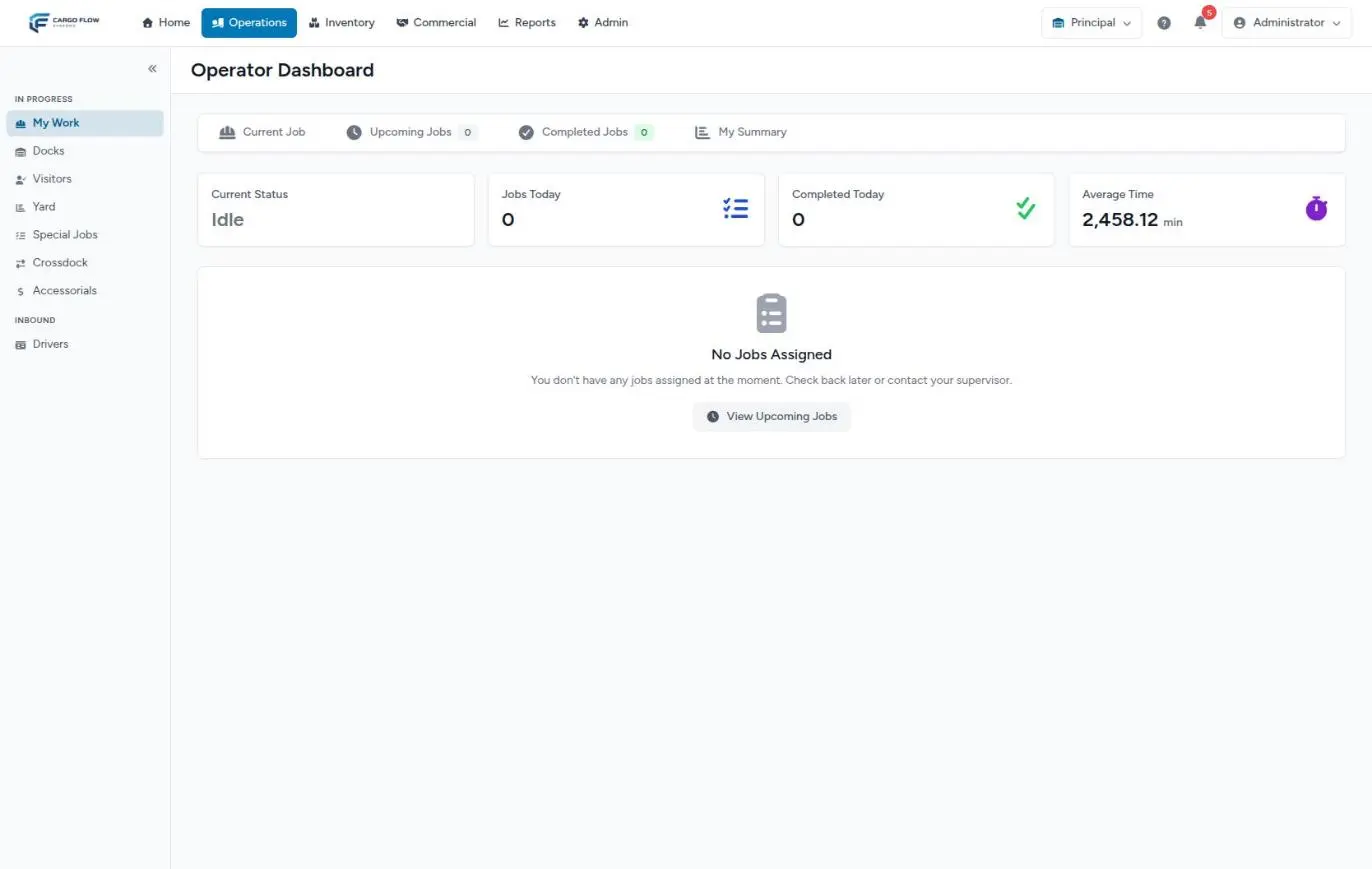
Does the physical work. Lands on My Work at sign-in, with the assigned job and the next ones. Sees only jobs and special jobs assigned to them. Can also view stock, receipts, shipments and cross-docks, capture receipts, do cycle counts, capture accessorials and generate documents. See The operator app.
Accounting
Views and manages billing: charges, invoices, collections and invoice export, plus the daily transactions and invoice reports. Can look up receipts, shipments and quotes, but not operate. Lands on the first screen available in its menu and goes on to Commercial from there.
Client portal
The role of your customers’ users. They do not enter the warehouse application but the client portal, where they see only their own data; by default, their stock and accessorials. These users are created from the customer record. See Portal users.
Quick comparison
| Task | Super admin | Admin | Supervisor | Worker | Accounting |
|---|---|---|---|---|---|
| Manage users and permissions | Yes | No | No | No | No |
| Add docks | Yes | No | No | No | No |
| Configure yard and numbering | Yes | Yes | No | No | No |
| Assign doors and operators | Yes | Yes | Yes | No | No |
| Capture a receipt | Yes | Yes | Yes | Yes | No |
| Confirm a receipt | Yes | Yes | Yes | No | No |
| Create ASNs | Yes | Yes | No | No | No |
| Adjust stock | Yes | Yes | Yes | No | No |
| Invoice | Yes | Yes | No | No | Yes |
| Export billing | Yes | No | No | No | Yes |
| See the Reports section | Yes | Yes | No | No | Transactions and invoices only |
| Screen at sign-in | Home dashboard or Warehouses | Home dashboard | Docks | My Work | First in its menu |
How to choose the role
- Give the lowest role the person can do their job with; you can always raise it.
- Keep super admin for one or two trusted people.
- One account per person: the log records who did what.
- If a default role almost fits, give the person extra permissions; if several people need it, create a role.
Example: roles for a 12-person warehouse
- 1 super admin: the warehouse manager, Carlos Ruiz.
- 1 admin: Ana López, head of operations; sees reports and invoices when accounting is out.
- 2 supervisors: one per shift. One also gets Read Dock Reports as an extra, to see the home dashboard.
- 7 workers: the night-shift one, Luis Pérez, with Confirm Receipts as an extra.
- 1 accounting.
Customers’ users are created separately, on each customer record, and also count toward the plan limit.
FAQ
What if someone needs a bit of two roles?
Give them the closest role and add what is missing as extra permissions on their form. If several people have the same need, create a custom role.
Can someone have a different role in each warehouse?
Their permissions are the same in all their warehouses. Under Admin › Warehouses › Manage Users they can be given a different part per warehouse, which only decides which alerts they get and whether they can be assigned work there. See Users per warehouse.
Why do roles show different names on some screens?
In the role list the super admin and admin appear abbreviated, and on a warehouse record roles show their internal names. It is the same role.
Need help?
If something did not work as expected, our support team can help you.
Was this article helpful?