Requirements to create a cross-dock
Overview
A cross-dock is created from two dock jobs that already exist: a delivery and a pickup, both assigned to a dock and not started. The creation screen only lists jobs that meet the conditions and re-checks everything on save, because between opening the screen and saving someone may have started or moved a job.
The requirements
- The warehouse has the cross-dock module and your user Create Crossdock Jobs (default: Admin and Supervisor).
- There is a delivery job (freight coming in) in assigned status: it has a dock but hasn’t started.
- There is a pickup or load job (freight going out), also assigned.
- Both are at real docks, not in the yard or the waiting line.
- They are at different docks.
- The delivery has at most one open receipt and the pickup at most one open shipment.
- If the pickup has a shipment, that shipment has no live allocation against floor stock.
- Any documents they carry belong to the customer you are going to pick.
How jobs get assigned: Create a dock job and The dock board.
Open the screen
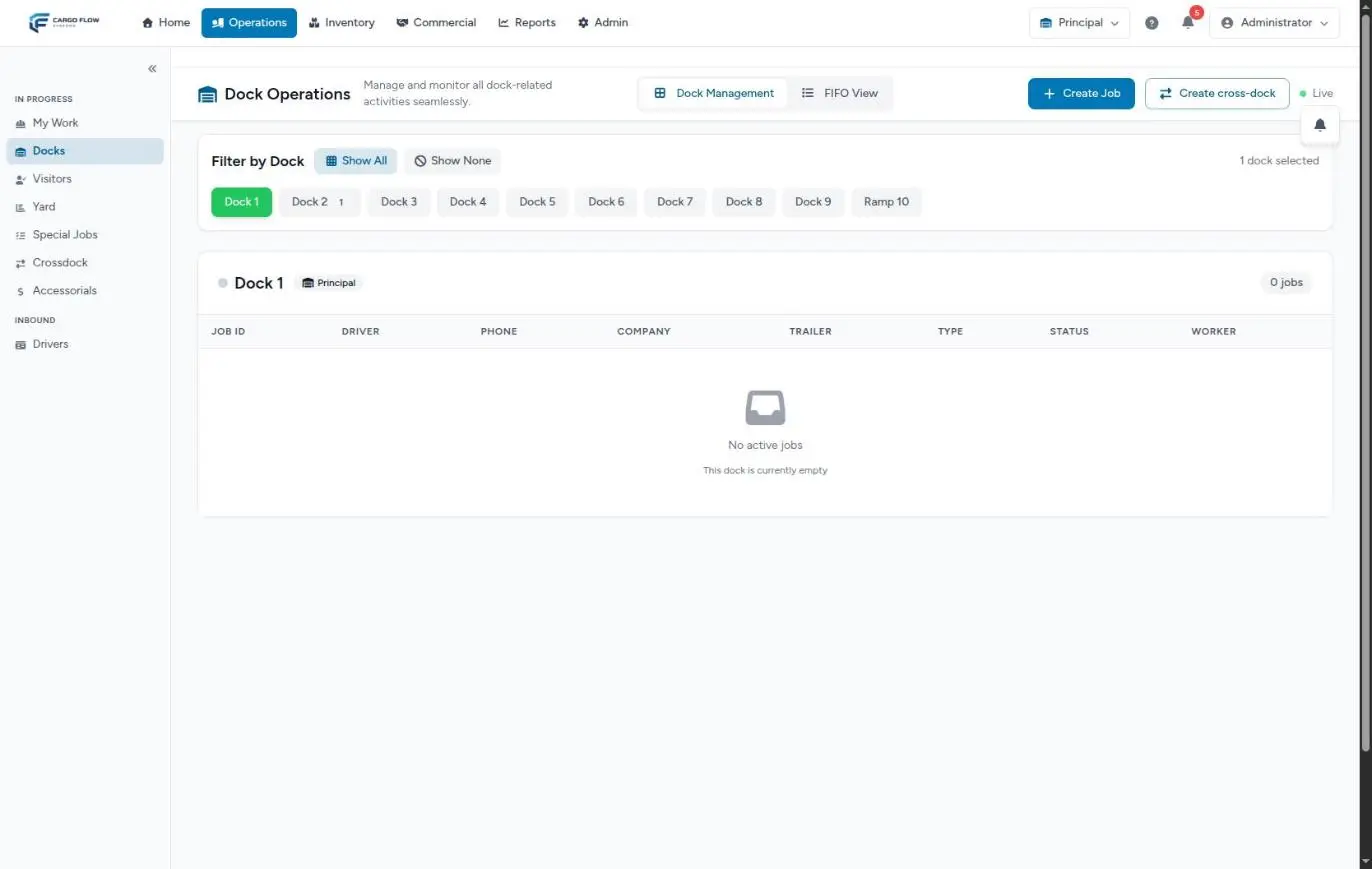
In Operations › Docks, click Create cross-dock next to Create Job. On a phone it is a small button with the two-arrow icon. It only shows with the module and the permission.
If there isn’t at least one qualifying delivery and one qualifying pickup, the screen shows a yellow notice instead of the form, with a button back to the board.
The fields, one by one
| Field | What it is | Required? |
|---|---|---|
| From dock (delivery) | List of qualifying deliveries. Each option shows the dock, carrier and driver, the job’s customer and, if any, the receipt that will be adopted. | Yes |
| To dock (pickup) | List of qualifying pickups, with the same details and the shipment that will be adopted. | Yes |
| Client | Who the receipt and shipment are issued to and who gets billed. The customer of the delivery you pick is proposed. | Yes |
| Operator | Who does the job. The delivery’s worker is proposed or, failing that, the pickup’s. Only lists warehouse people who can do dock work. | No, but without a worker the job appears in nobody’s My Work; the system asks you before saving. |
| Items to cross | What you expect to come off: product (searched among the customer’s, so pick the customer first), quantity above zero and UOM. It only seeds what is expected; the worker captures the real amount. | No |
The create button enables once there is a delivery, a pickup and a customer, and every item line has a quantity. On save you land on the new cross-dock’s screen.
Receipts and shipments that already existed
- The delivery has an open receipt (pending, in progress or captured): a badge shows its number. That receipt is adopted: it becomes the cross-dock’s, keeping its number, its ASN and anything already captured. Its items show as a preview and those you add on the form are appended, except products the receipt already has (those are left untouched). A confirmed or cancelled receipt isn’t adopted.
- The pickup has an open shipment: it is adopted. If it was a draft it becomes confirmed, and its empty transport fields are filled with the outbound driver’s details.
- No documents: a pending receipt is created (reference and notes carry the cross-dock number; declared products as expected, into XD-STAGE) plus an empty confirmed shipment that gets filled with what is actually received.
- More than one open document on either job: the badge flags it in red and the cross-dock isn’t created. Consolidate first (cancel the extras or move them to another job).
- The shipment has a live allocation: the badge warns and the button won’t enable. Release the allocation from the shipment screen; a cross-dock only ships what arrives on its receipt.
Different customers
- If the delivery and the pickup carry different customers, a yellow notice appears under the customer and, on create, the system asks you to confirm. Everything is issued and billed to the chosen customer, and a note with both customers stays on the cross-dock.
- If an adopted document belongs to another customer than the one you picked, a red notice appears and the system refuses to create it: the freight would be published under the other customer, on their BOL and in their portal. Pick that customer or correct the document’s customer first. See Correct the customer or the shipment number.
Example
The delivery at dock 2 carries receipt RC-NORTH-2026-00310, created empty when it was assigned; the pickup at dock 5 has no shipment. Luis Pérez picks both, the customer is proposed automatically (Northern Trading Co.) and so is the worker. He adds 48 cases of NT-1001 and creates it. The adopted receipt gets a line of 48 expected into XD-STAGE and an empty confirmed shipment is created.
Messages that stop it
Yellow notice instead of the form: “You need one delivery and one pickup, both assigned, to cross-dock.”
- No jobs qualify. Check on the board that they are assigned (not started), at real docks and not in the yard.
“The from-dock needs a delivery in status assigned.” or “The to-dock needs a pickup in status assigned.”
- The job changed while you filled the form (someone started, moved or cancelled it). Reopen the screen.
“The delivery and the pickup are at the same door. A cross-dock moves from one door to another.”
- You picked two jobs at the same dock.
“The delivery belongs to … and the pickup to … Confirm the cross-dock is being created across different clients before continuing.”
- Your confirmation wasn’t registered. Create again and accept the prompt.
“The delivery has more than one open receipt…” or “The pickup has more than one open shipment…”
- Consolidate the documents first.
“Shipment … has a live floor allocation. Cancel the allocation before cross-docking…”
- Release that shipment’s allocation and try again.
“Receipt … belongs to …” or “Shipment … belongs to …”
- Pick that customer or correct the document’s customer.
“The selected operator does not belong to this warehouse.”
- Pick another worker from the list, or reload the screen.
“Crossdock is not enabled for this warehouse.”
- Ask your administrator to enable it. See Modules, permissions and access.
Best practices
- Assign both trucks on arrival and create the cross-dock before the worker starts unloading.
- Assign the worker at creation.
- Declare the expected products: the worker captures against them.
- If the pickup carries an already allocated shipment, release it before creating.
FAQ
The worker already started unloading; can I turn it into a cross-dock?
No. Only assigned jobs that haven’t started are offered. Finish that delivery as a regular receipt and ship the freight with a regular shipment.
How do I get the two jobs back if I made a mistake?
Cancel the cross-dock job on the board before the receipt is captured. Both jobs return to assigned. See Cancel a cross-dock.
Need help?
If something did not work as expected, our support team can help you.
Was this article helpful?