Which KPIs the customer sees in their portal
Summary
The portal’s KPIs section has no cards of its own: it shows the same cards from your warehouse’s KPI Dashboard that have Show in client portal ticked, computed only from the data of the customer signed in. This article is for whoever manages the dashboard; what the customer sees on the other side is in Inventory, KPIs, warehouse and language in the portal.
Before you start
- Permission: to create, edit or publish cards you need the manage-KPIs permission, which Admin and Superadministrator have by default. The screen is under Admin › Manage KPIs.
- Modules: the warehouse needs the KPI module (for the portal KPIs section) and the module each figure comes from: shipping for outbound KPIs, receiving for inbound ones, inventory for stock ones, docks for dock ones.
- Customer access: each portal user needs Read on KPIs, on the customer’s Portal Users tab. See Portal users.
How the dashboard is built in general is in Build the KPI dashboard.
Which cards appear in the portal
A card appears in the portal only if all of this holds:
- It has Show in client portal ticked.
- Its metric can be narrowed to one customer. The checkbox does not even appear in the form for metrics that cannot be filtered by customer (location occupancy, ABC distribution, expiring or expired lots, transactions by operator or by customer).
- The module the figure comes from is enabled in the warehouse.
- The metric does not require a special permission. Billing and revenue metrics and inventory value require permissions portal accounts do not have, so the portal hides them.
The customer sees the cards in the same order as the warehouse dashboard.
The cards that come published
The first time someone opens a warehouse’s dashboard, the system creates the preset cards. These come already marked for the portal (if the matching module is enabled):
| Card | What it measures for the customer |
|---|---|
| On-time shipping | The share of their shipments that left on the requested date. |
| Line fill rate | The share of order lines that shipped complete. |
| Complete and on time | Orders that shipped complete and on date. |
| Receiving accuracy | How closely what was received matched what was announced. |
| On-time arrivals | Their trucks that arrived on the announced date. |
| On-hand units | Their pieces in the warehouse today. |
| Inventory aging | Their pieces split by days in the warehouse (donut). |
| Receipts and Shipments | How many receipts and shipments they had per period (line). |
| Units received and Units shipped | Pieces in and out per period (bars). |
The other preset cards (inventory accuracy, processing times, dock service-time compliance, the dock cards) come unpublished. You can publish them if their metric can be filtered by customer.
What never appears
- Storage revenue, Total revenue and Outstanding AR: they require the view-billing permission.
- Inventory value: it requires the view-valuation permission.
- Metrics that cannot be filtered by customer.
Publish or withdraw a card
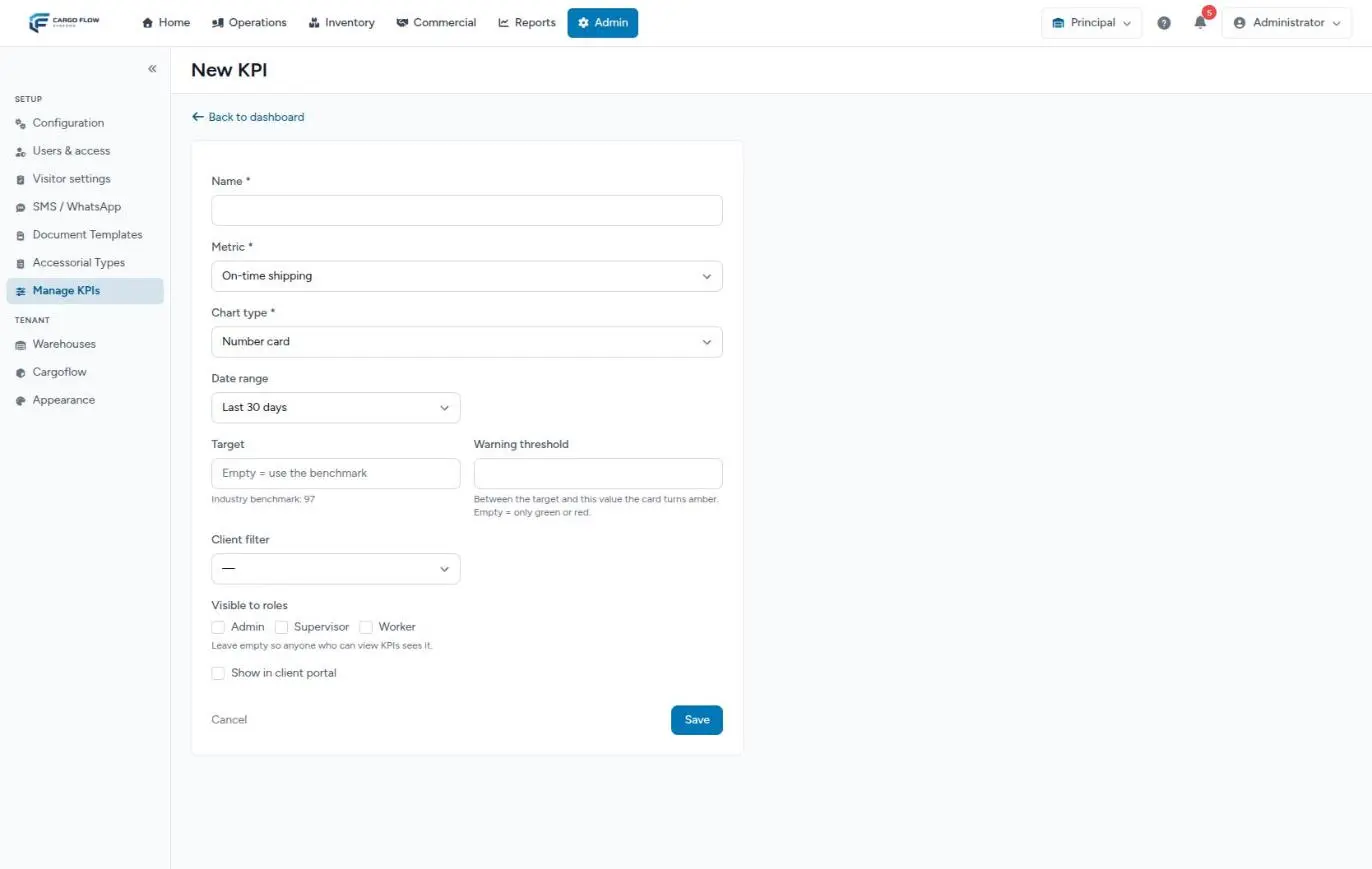
- Go to Admin › Manage KPIs and edit the card (or create one with New KPI).
- Name — this is the title the customer will see. Write it with them in mind.
- Metric — decides whether it can be published: if the portal checkbox does not appear, that metric cannot be filtered by customer.
- Date range — the customer sees the same range (last 7, 30 or 90 days, month to date or year to date). «As of today» metrics, such as on-hand units, use no range.
- Target and Warning threshold — they apply to your team; they are not painted for the customer (see below).
- Client filter — ignored in the portal: each customer sees their own data.
- Visible to roles — only affects your staff, not the portal.
- Tick Show in client portal and click Save. You get «KPI saved». The card list shows which ones are published.
To withdraw it, untick the box and save. The change applies instantly to every customer in the warehouse: publishing is per card, not per customer.
How it is computed for each customer
When a customer opens their KPIs section, each card is computed with the same formula as in the warehouse, but forcing the customer of their account and the warehouse selected in their portal. Whatever customer filter the card has on the warehouse side does not matter: the customer never sees another customer’s data. If the customer operates in several warehouses, they see the published cards of the warehouse they have selected.
What the customer sees on each card
- The name you gave the card, as is. It is not translated: a preset card keeps its name in the language of whoever first opened the dashboard.
- The category and range under the name (for example, «Operations · Last 30 days»); «as of today» metrics show no range.
- The value, as a number, line, bars or donut, depending on the chart type you chose.
- If the customer had no activity in the range, the card says «No data for this range».
The customer cannot change the range, filter or export: the card is view-only.
When it gets a color
In the warehouse, a card is painted green, amber or red against its Target (or the industry benchmark if you leave it blank). Not in the portal: the customer only gets a color against a target agreed with that account. With no agreed target, the card shows without color. That way the customer never sees red against an internal goal they never signed.
The portal and the monthly summary email
The monthly KPI summary sent by email uses the same published cards, computed for the closed month. There are three important differences:
| Portal | Monthly summary email | |
|---|---|---|
| Period | Each card’s range. | The whole closed month. |
| Color | Only against a target agreed with the customer. | Also against the card’s target or the industry benchmark. |
| Money cards | Never appear. | Appear if they are marked for the portal. |
How it is scheduled and who gets it is in The daily inventory and the monthly summary. The full picture of what the customer receives is in What the customer sees and when.
Example
The Principal warehouse wants Valley Distributors to see its processing time. In Manage KPIs they edit the preset card «Warehouse processing», rename it «Processing hours for your orders», keep the range «Last 30 days» and tick the portal box. Ana López signs in to her portal and sees «Processing hours for your orders: 18.5», without color. On the 4th of the following month, her monthly summary brings the same card with the closed-month value and, since the industry benchmark is 24 hours, painted green.
Best practices
- Publish few cards, and make them the ones the customer reviews in their monthly meeting.
- Give them names the customer understands, without internal jargon.
- Never publish revenue, receivables or inventory value cards.
- Before publishing, check the card filtered by that customer on your dashboard: that is what they will see.
- Remember the name is not translated: if you have customers in both languages, choose a neutral name or agree on one with them.
Troubleshooting
The customer sees «No KPIs to show yet».
- There are no published cards in the warehouse they have selected, or the published ones come from modules that warehouse does not have.
The Show in client portal checkbox does not appear.
- The chosen metric cannot be filtered by customer.
I published a card and the customer does not see it.
- Check it is not a billing or valuation card, that its module is enabled and that the customer has that warehouse selected.
The customer has no KPIs section in their menu.
- The warehouse lacks the KPI module or their account is on «No access» for KPIs.
Frequently asked questions
Can I show a card to just one customer?
No. Publishing is per card and applies to every customer in the warehouse with KPI access; each one sees their own figures. If a customer should not get the section, leave their account on «No access» for KPIs.
Where do I enter the target agreed with a customer?
There is no screen for it today. The card’s Target applies to your team and to the monthly summary, but it does not color the portal.
Need help?
If something did not work as expected, our support team can help you.
Was this article helpful?